
First steps · 6/7
First Month
At the end of the first month, you check the attendance, fix errors and hand the data over to payroll. This chapter is a checklist: what to watch during the month, how to go through the warnings, how to print the sheets, and what to check before sending the data to payroll.
During the month
Once a week, open “Reporty” (Reports) → “Všechny příchody” (All arrivals) and tick the “Error” checkbox. The cards with a warning appear. Fix errors right away, while the employee still remembers what happened.
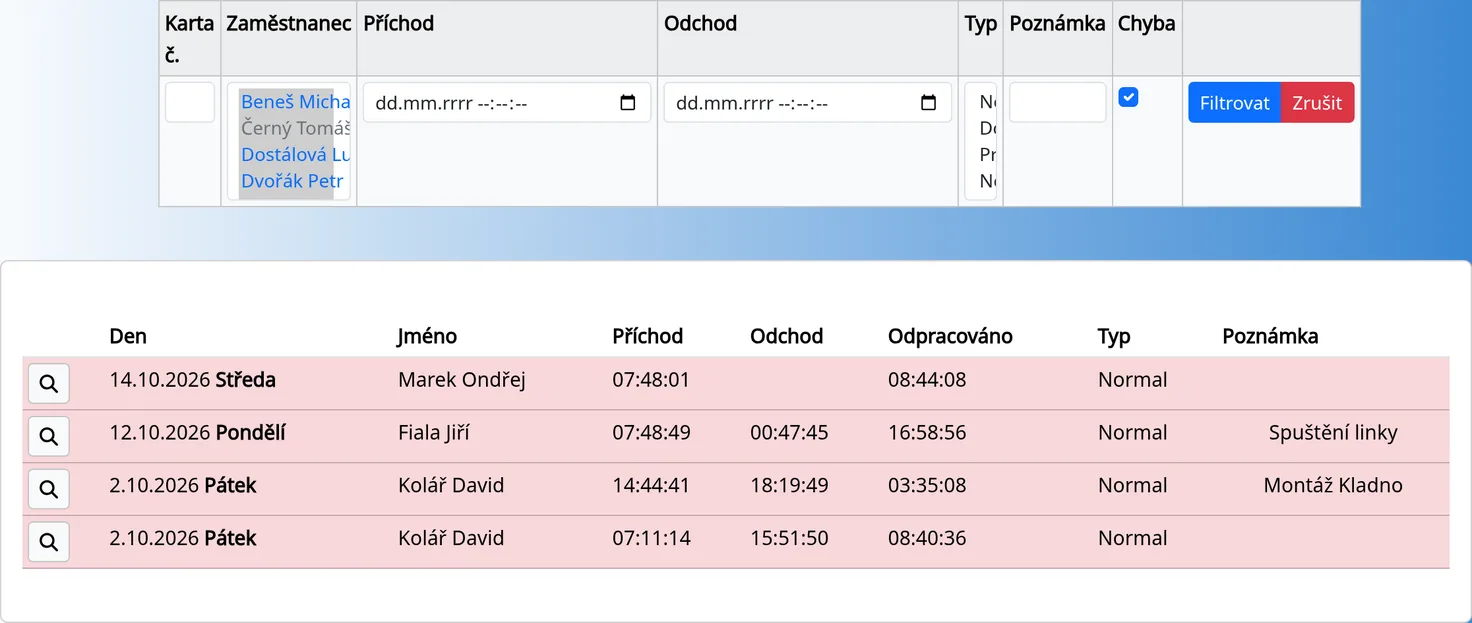
Every five minutes the system recalculates the warnings on arrivals from the last three months, and at the start of each month it creates payed days off for public holidays for all active employees. A holiday therefore appears in the monthly sheet by itself.
Three kinds of warning
- Unclosed attendance! An arrival from an earlier day has no leave. The employee forgot to leave. On the kiosk, their tile is red with an exclamation mark.
- This card is being overlapped by another card! Two of the employee's cards overlap in time. The warning contains the number of the other card as a link. Breaks do not count towards the overlap.
- Arrival date and leave date are not equals! The leave is on a different day than the arrival. The warning is not shown for employees who have Night shifts ticked.
A warning disappears as soon as you fix the card. The Attendance Cards chapter describes them in detail.
Approval by the manager
A manager sees the cards of their subordinates (see the Managers chapter). They check the subordinates' monthly sheet, fix errors and print the PDF for signing.
The monthly sheet
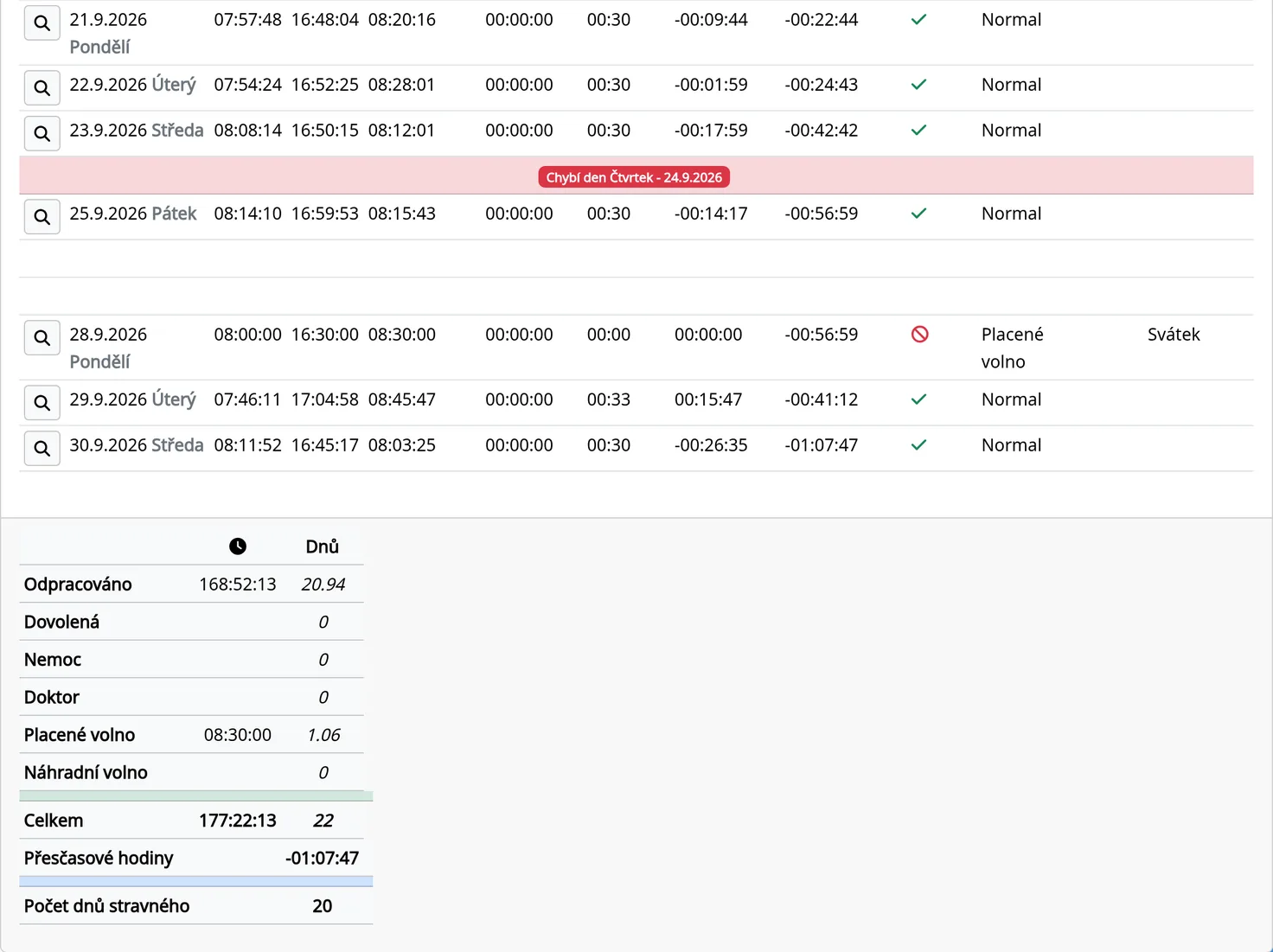
- Reporty → Month list.
- Choose the year, month and employee and click “Zobrazit výpis” (Show list).
- At the top you see the required hours and the number of working days. If overtime is on, you also see the overtime from last month.
- Days with a warning are red. Days on which the employee recorded nothing are red only if the missing-day warning is turned on.
- At the bottom is the summary: hours worked, vacation, illness, doctor, payed day off, day off, total and overtime.
The button with the printer icon opens a PDF that you can print or save. If the option is turned on, the PDF has space for the employee's and the manager's signatures.
Wage list
If “Zero lists enabled” (Wage lists) is turned on in System, the Reporty menu has a “Wage list” item. It subtracts the overtime minutes from the days with overtime so that the month adds up to the required hours. It works only if the employee has overtime for the month. Otherwise a message says the list cannot be created because the required hours were not reached.
Exports
- PDF is available in all sheets (printer button).
- XLS is not available yet.
- Other formats (such as XML for payroll software) are in preparation.
Before sending to payroll
- No unclosed attendance is left (a red tile, the warning “Unclosed attendance!”).
- No warnings about overlapping cards.
- For each employee, check that the totals of days (vacation, illness, doctor, payed day off) are correct.
- Check the days marked as “manipulated” in History. Such a day contains arrivals that were edited by someone other than the employee.
- If the meal allowance is on, verify the number of allowance days.
- Print the monthly sheet and have it signed.
Tips
- Fix errors as you go, not on the last day of the month.
- If a day is missing, add it with “Zadat příchod/y” (Enter arrivals; see the Attendance Cards chapter).