
Everyday usage · 7/10
Infomail
An Infomail is a mass email to employees. An administrator writes a message, the system fills in the recipient's personal details and sends it to the selected people. For each person, it remembers whether and when they received the message. This chapter describes writing, sending and the send history.
Only administrators can manage Infomails. The menu is at Admin → Mail list.
Writing a message
- Admin → Mail list.
- Click the green circle with a plus next to the tabs.
- Enter the name of the message (just for you) and click “Create”. The message gets temporary content, which you overwrite right away.
- On the new message's tab, fill in:
- Name,
- the email Subject,
- the Content in the editor (bold text, bullets and links).
- Save with the floppy-disk icon.
All three fields are required. Each message has its own tab. To delete one, use the red cross and confirm “Are you sure you want to delete this mail?”.
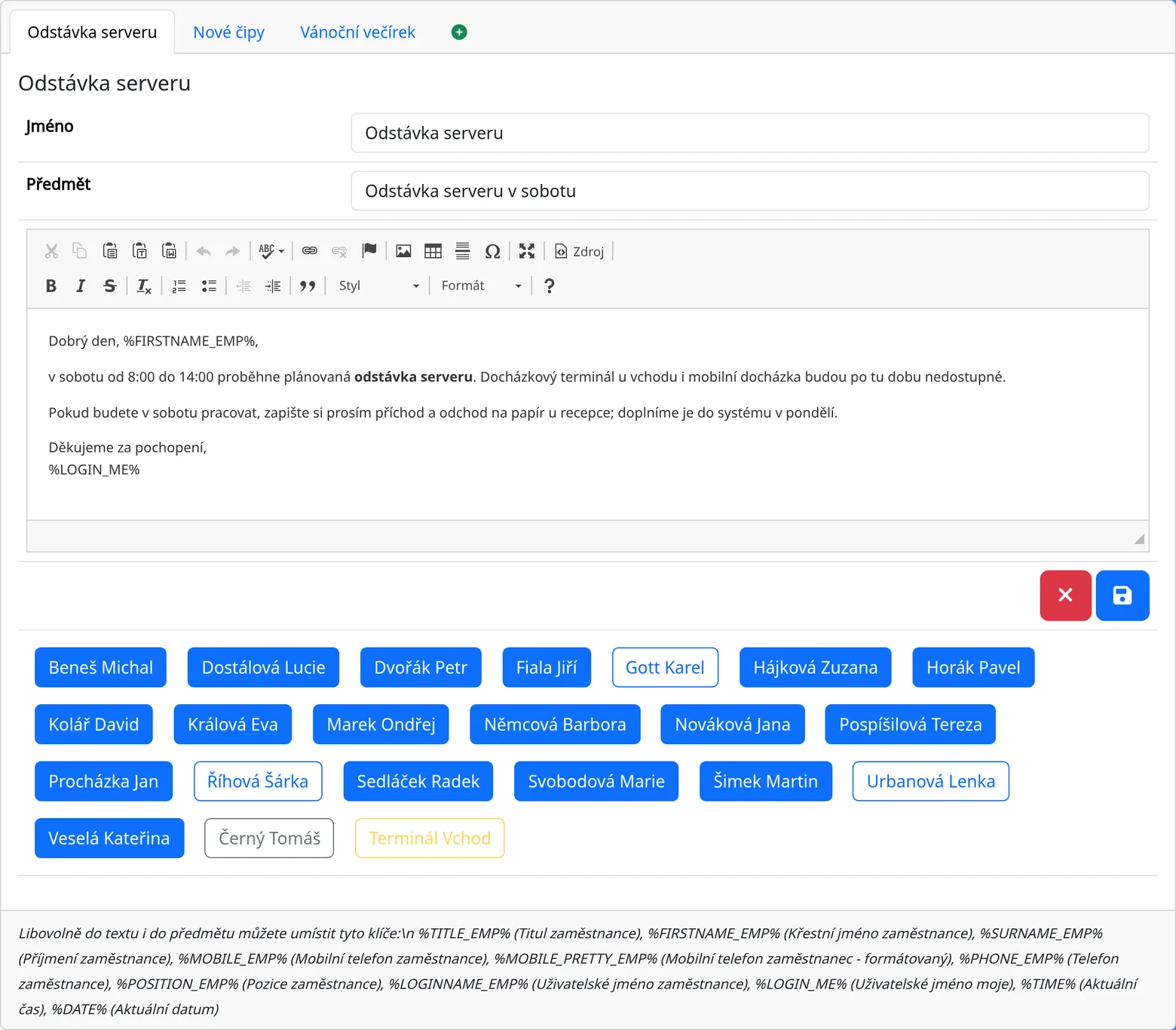
Placeholders
You can put these tags into the subject and the content. The system replaces them with the recipient's details:
| Tag | Replaced with |
|---|---|
%TITLE_EMP% |
the employee's title |
%FIRSTNAME_EMP% |
first name |
%SURNAME_EMP% |
surname |
%LOGINNAME_EMP% |
the employee's login name |
%MOBILE_EMP% |
mobile |
%MOBILE_PRETTY_EMP% |
mobile with spaces |
%PHONE_EMP%, %PHONE_PRETTY_EMP% |
phone, phone with spaces |
%POSITION_EMP% |
position |
%EMAIL_EMP% |
|
%LOGIN_ME% |
your own login name (the sender's) |
%TIME% |
the current time |
%DATE% |
the current date |
A help text with these tags is also shown below the message.
Sending
Below the form is a list of all employees as buttons. Sending is done person by person:
- Click an employee's name. The email is sent only to them.
- The button is highlighted as sent.
- Employees without an email address are inactive. When you hover over them, “Email is not valid” appears. Fill in the email in their profile.
To send the message to everyone, click the names of all recipients one after another.
The email is sent from the address [email protected], with the company name as the sender's name. This is why recipients cannot reply.
Send history
An employee who has already received the message has a button marked as active. When you hover over it, you see “Sent” with the date, time and the sender's name. Buttons not yet used show “Not sent”. Clicking again sends the message again.
Tips
- To test, send the message to yourself first.
- Send only messages related to work. The email has no unsubscribe option.
- Message texts are HTML from the editor. Paste only plain text into the editor.
Common problems
- An employee's name is gray. They have no email address filled in.
- The message did not arrive. Check the recipient's spam folder.