
First steps · 1/7
Installation Email and First Sign-In
Once your Attendees system has been created, you receive an email with a link to your own attendance system. This chapter explains what the email contains, how to sign in for the first time, and where to find the system addresses later.
What the email contains
After the system is created, you receive an email with the following details:
- The system address, for example
your-company.attendees.eu. Every company has its own address and its data stored separately. You never see another company's data. - The mobile interface: employees open the same address on their phones and the system shows them the mobile version with their own attendance only (see the Mobile chapter).
- The login name and password of the first administrator.
Bookmark both the system address and the mobile address. Send the phone address to employees only once they have their own sign-in details.
What the link in the email does
The link opens the sign-in page of your system. At the top is the application title, below it two fields (user name and password), a “Pamatovat si přihlášení” (Remember my sign-in) checkbox and a “Login” button. Below the form is the sign-in description. You can change both texts (the title and the description) later under Admin → System → “Obecné” (General).
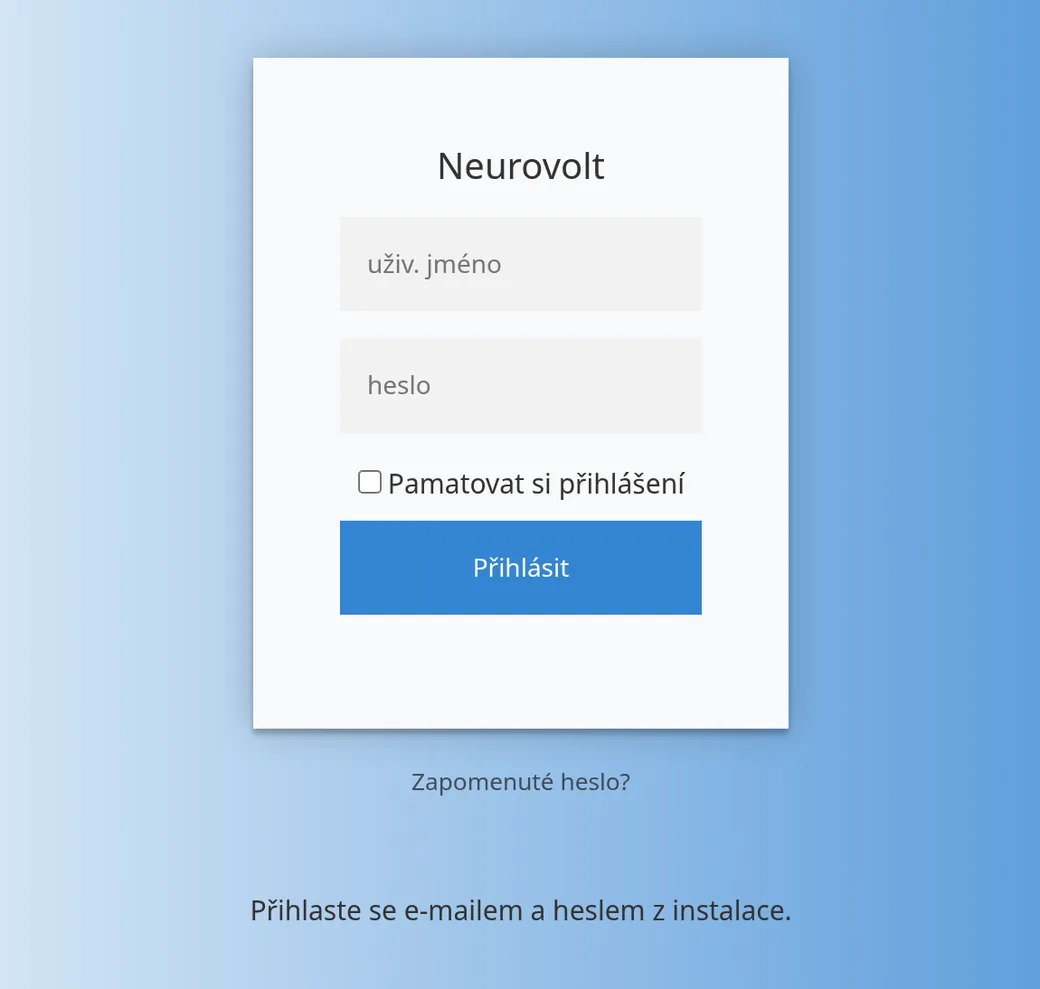
First sign-in as administrator
- Open the link from the email in a browser on your computer.
- Enter the login name and password from the email.
- If you are working on your own computer, tick “Pamatovat si přihlášení” (Remember my sign-in). The sign-in then lasts 14 days. Without it, the system signs you out after 20 minutes of inactivity.
- Click “Login”.
- After you sign in, the main screen opens with a tile for each employee. A phone is recognized by its browser and gets the mobile version.
If you enter the wrong details, the system shows an error and does not let you in. If you have trouble, see the FAQ chapter.
What to do right after signing in
- Change your password. Open the menu with your name at the top right, choose “Profile”, enter the new password in the “New password” and “New password again” fields (at least 6 characters) and save it with the floppy-disk icon. You can also click the button with the refresh and envelope icons. It creates a random password and emails it to you. This works only if your profile has an email address filled in.
- Go through the settings in the “Setup on Day One” chapter.
- Add your employees (the “Employees” chapter).
Where to find the addresses later
- The system address is the one you are working on right now. It is in the address bar of your browser.
- The phone address is the same address with the prefix
m.. The “System” menu also has a “Tablet view” item that opens the mobile screen on a computer. - You can see the system version in the “System” menu, on the first line (“Version …”).
- The link for the permanent kiosk sign-in is in the employee's profile (see the Kiosk chapter).
Tips
- Do not forward the email with your details. It contains administrator access.
- The system sends emails from the address
[email protected]. If emails with passwords do not arrive, check the spam folder. - An administrator is any employee who has “Administrátor” (Administrator) ticked in their profile. We recommend having at least two administrators.
Common problems
- The sign-in page says “System disabled!”. The system has been blocked by the provider. Contact support.
- After signing in I see only one mobile screen. You signed in from a phone. To switch to the kiosk screen, use the monitor icon in the top bar.