
Everyday usage · 8/10
History
History is a record of who did what in the system and when. It helps you find out who corrected a card, who recorded an arrival, who signed in and who generated a sheet. This chapter describes what is recorded, how to read an entry and how to filter.
The “History” menu is in the top bar. Dummy employees (the kiosk) do not see it. An administrator sees all entries, everyone else only entries about themselves and their subordinates.
What is recorded
- Actions on the kiosk and on mobile: “arrived to work”, “started home office”, “went to business trip”, “went to the doctor”, “went on a break”, “returned from break”, “left”, and the “for the rest of the day” variants.
- Card changes: “Changed field Arrival from … to …”, “Set field …”, “Erased field …”. Each change shows both the original and the new value.
- Card creation: “Created arrival” (one card) and “Created set of arrivals” (several days).
- Card deletion and employee deletion.
- Employee changes: “Changed person …”.
- Generating a monthly sheet.
- Sign-ins: “Login success” and “Login failed”.
- Automatic jobs: public holidays that the system creates by itself at the start of the month are recorded as created arrivals with the author “automat”.
- Rides: creating, editing and deleting a car ride, and refueling.
- Overtime changes.
How to read an entry
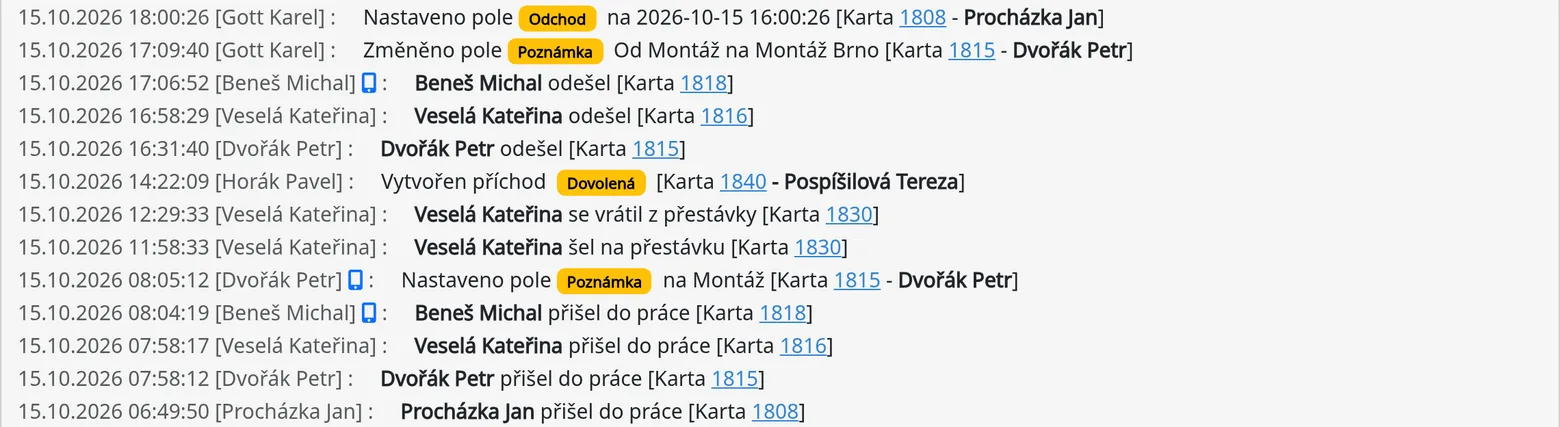
Every row starts with the date and time and the name of the person who performed the action: 13.10.2026 08:02:11 [Jana Nováková]. After the name there may be:
- a phone icon, if the action happened in the mobile version,
- an exclamation mark in a circle (blue), if the entry is for administrators only,
- the text of the action and a link to the card, for example “[Card 440715 – Martin Nehvizda]”. The link opens the card.
Entries for administrators only are visible only to administrators.
Kiosk or mobile
A phone icon on a row means the action was recorded by an employee or an administrator in the mobile version. Rows without the icon were created on a computer or on the kiosk. This tells you where an arrival was recorded from.
Filtering
Above the list is a filter:
- Date: only entries from that day,
- Set by: who performed the action,
- Employee: who the action concerns,
- Card: the card number.
Apply the filter with the “Filter” button. The red cross clears the filter. The list is paged (First, Previous, page numbers, Next, Last).

What History is useful for
- To find out who corrected the time on a card: filter by card number.
- To find out why overtime changed: filter by employee and date.
- To look for sign-in attempts: filter by date and employee, or by the text “Login failed”.
Tips
- History cannot be edited or deleted.
- When checking before payroll, display the days marked as “manipulated” and verify who edited them (First Month chapter).
Common problems
- I cannot see a colleague's entries. You are neither their manager nor an administrator.
- History is empty. Check the filter and clear it.