
First steps · 2/7
Setup on Day One
The Admin → System screen determines how the system behaves for the whole company. This chapter walks you through the options worth checking on the first day, before you add employees. You can find all the other options in the Administration chapter.
Open the “Admin” menu in the top bar and choose “System”. The screen is available to administrators only. It is split into five tabs: “Obecné” (General), “Tablo” (Kiosk board), “Chování” (Behavior), Month list and Chip / card. Save your changes with the floppy-disk icon at the bottom right.
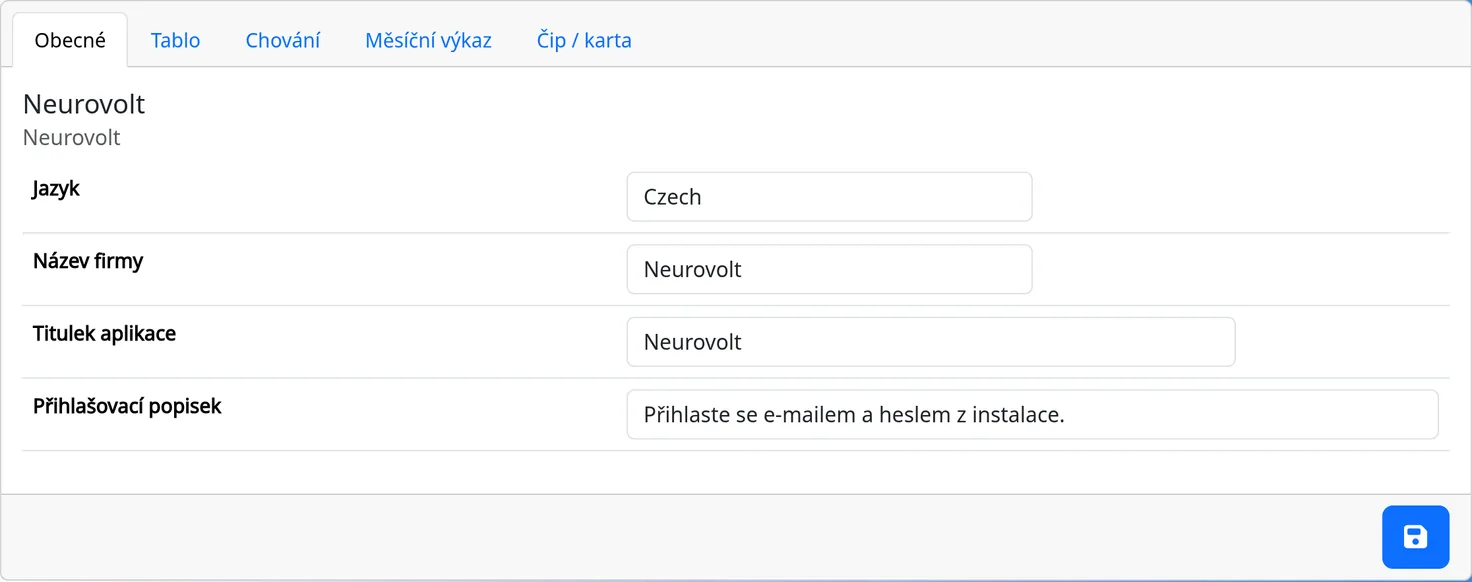
The General tab (“Obecné”)
- Language. The interface language. English and Czech are fully translated. German and Spanish are only partly translated.
- Company name. The official name. It appears above the form and in emails as the sender's name. The field is required.
- Application title. The heading in the top bar and on the sign-in page. The field is required.
- Login description. The text below the sign-in form. You can use the tags
[b]bold[/b],[i]italic[/i]and[u]underline[/u]. To create an email link, write[mail:[email protected]]text[/mail]. Example:To sign in, enter your user name. If you do not have one, contact the attendance administrator [mail:[email protected]][email protected][/mail].
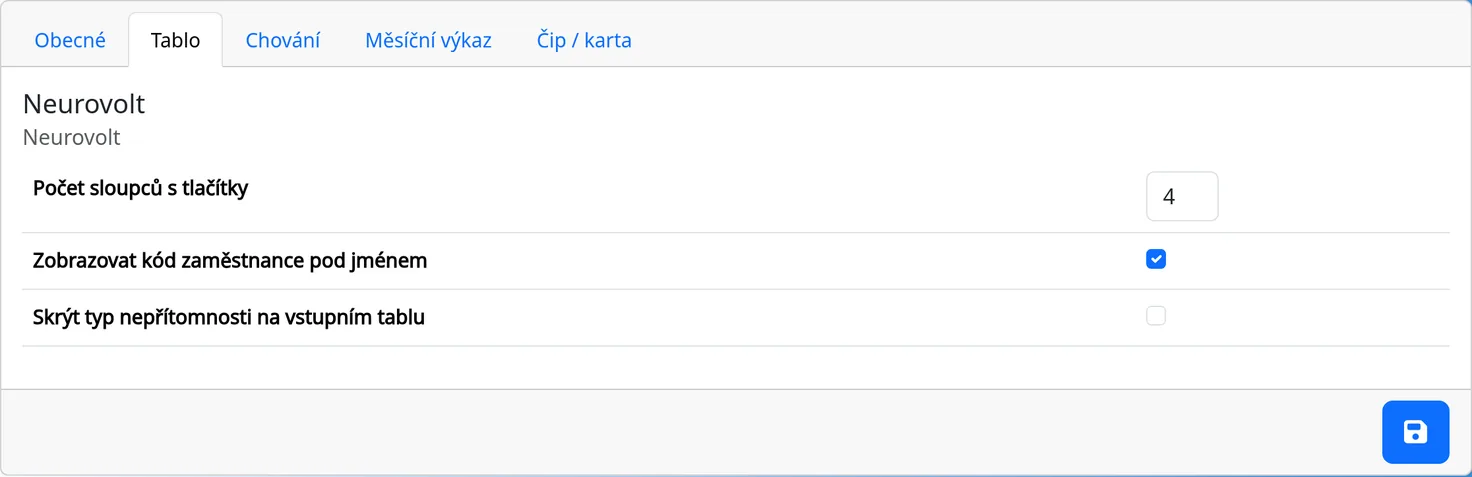
The Kiosk board tab (“Tablo”)
- Button columns. How many columns of tiles are shown on the kiosk. The allowed value is 1 to 12. For 15 to 25 employees, 3 or 4 columns usually work well.
- Show code on employee buttons. Shows the employee code (the external number) under the name on the tile.
- Hide type of unattendance on entry tablets. On the kiosk, vacation, illness, doctor, payed day off and day off are all shown as a generic “Unattendant”. This way passers-by cannot see the reason for an absence. It applies to the kiosk sign-in (type Dummy). Administrators and regular employees see the real type.
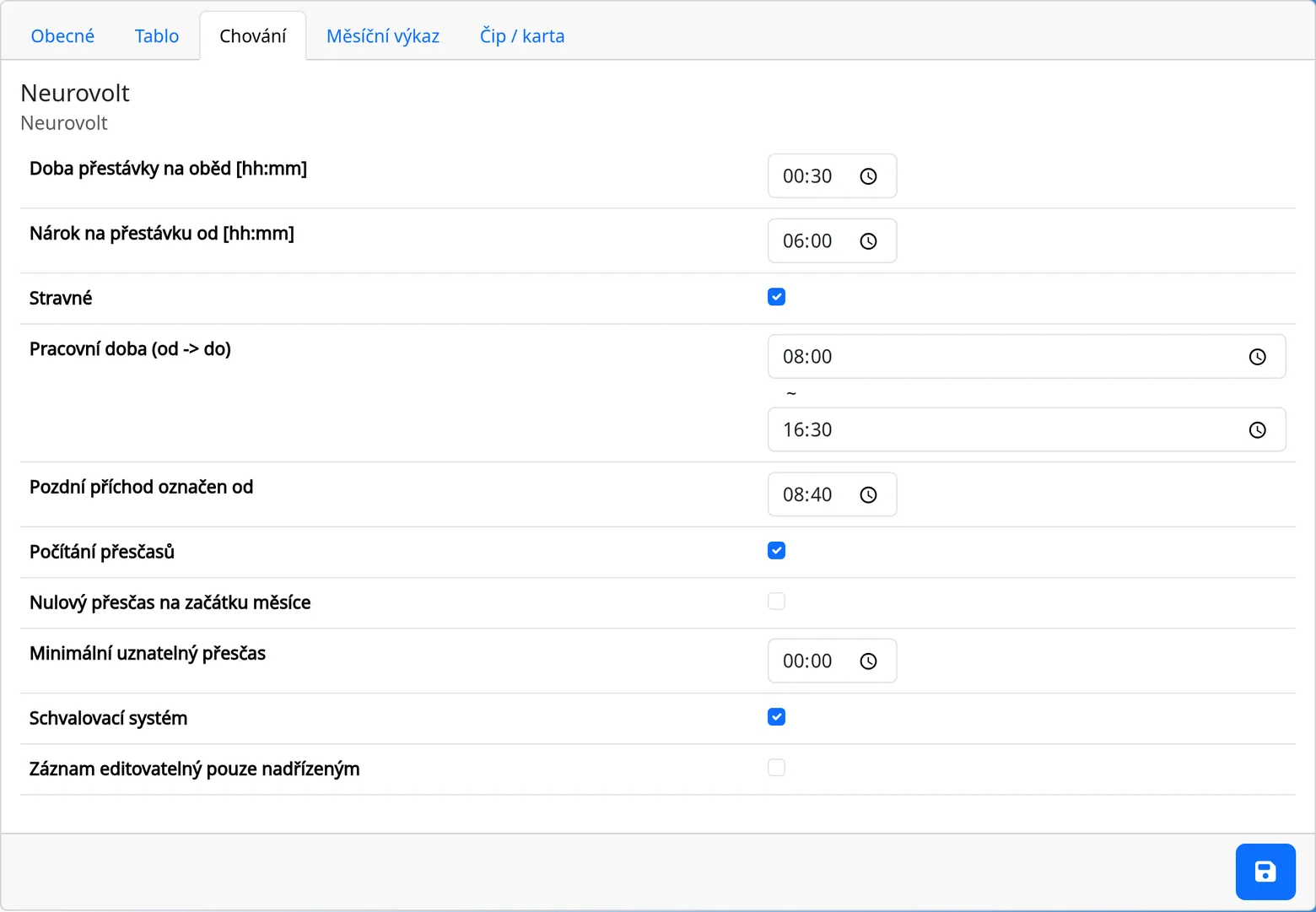
The Behavior tab (“Chování”)
- Work time (from – to). The default start and end of the working day, entered without the break (an eight-hour shift is 08:00–16:00). It is used for new employees and pre-filled in the “Zadat příchod/y” (Enter arrivals) dialog. You can change it for each employee.
- Mandatory daily break [hh:mm] and Break substracted from [hh:mm]. The rule for the automatic break. If an employee works more than the “Break substracted from” time in a day and records a shorter break than their minimum, the monthly sheet adds the minimum break. The “Mandatory daily break” value is pre-filled as the minimum break for a new employee. The actual minimum is in the employee's profile, on the Employment tab, in the “Break” field.
- Ticket (meal allowance). Turns on tracking of the meal allowance. A day qualifies if the employee worked more than 4 hours in the types Normal, Business trip or Home office. The allowance must also be turned on in the employee's profile.
- Late arrival is marked from. The time from which an arrival is considered late.
- Overtimes counted. Turns on overtime. Overtime is counted only for employees who also have it turned on in their profile.
- Overtime zero on the month begin. Overtime is not carried over to the next month.
- Minimal overtime being approved. The smallest overtime that is accepted.
- System of approvals. Turns on approval of arrivals by the manager.
- Card editable by boss only. When you turn this on, only administrators and the employee's manager can edit or delete an attendance card. Regular employees can no longer edit even their own.
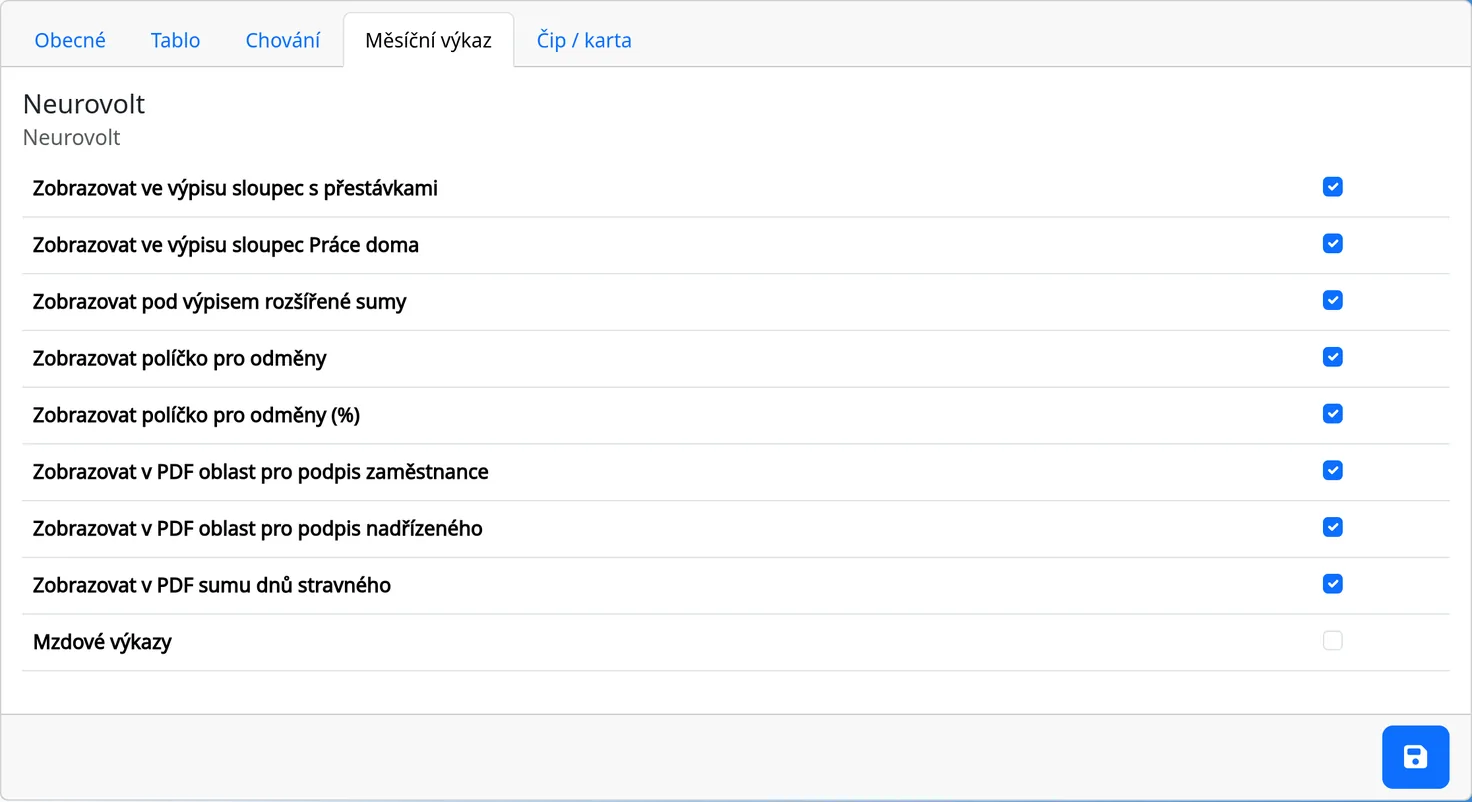
The Month list and Chip / card tabs
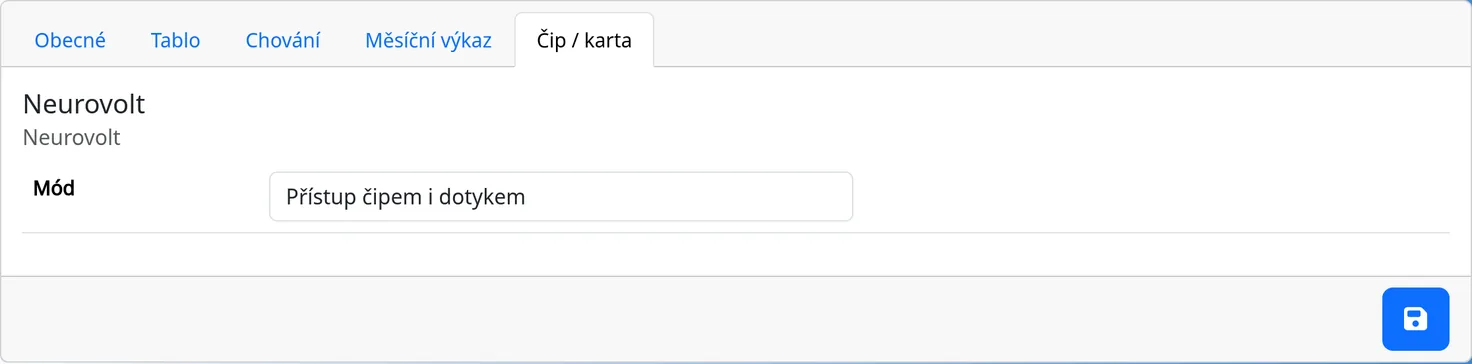
The Month list tab controls the columns and elements of the monthly sheet (breaks, home office, sums, bonuses, signatures). The Reports chapter describes it in detail. The Chip / card tab contains a single option, Mode: Off, Access only via chip, or Access via chip and touch (see the Chips chapter).
What you cannot set on the System screen
Some options are not offered on the screen. The system operator changes them at your request:
- the buttons in the leave dialog (which options the kiosk offers and which ones apply “until the end of the day”),
- the Cars (mileage log) module, the Infomail module and the export to other formats,
- the break type and the visibility of subordinates only.
The Kiosk Day to Day chapter describes the leave buttons on offer. The Cars and Infomail modules always appear in the menu. If you do not use them, simply leave them empty.
Recommended first-day routine
- Fill in the Company name and the Application title.
- Set the work time without the break (8 hours is 08:00–16:00) and the minimum break separately.
- Decide whether you want to track overtime.
- Choose the number of tile columns according to the number of employees.
- Save and add your employees.
Tips
- After saving, the message “Nastavení bylo uloženo” (Settings saved) appears.
- When two administrators edit this screen, they work on the same record. Only what each person changed is saved.