
First steps · 3/7
Employees
The Admin → Employees screen is where you add employees, set their access and employment details, and retire people who leave. It is available to administrators. Every employee can also edit their own profile here (menu with your name → Profile).
Adding an employee
- In the top bar, choose Admin → Employees.
- Click the green “+” button to the left of the floppy disk.
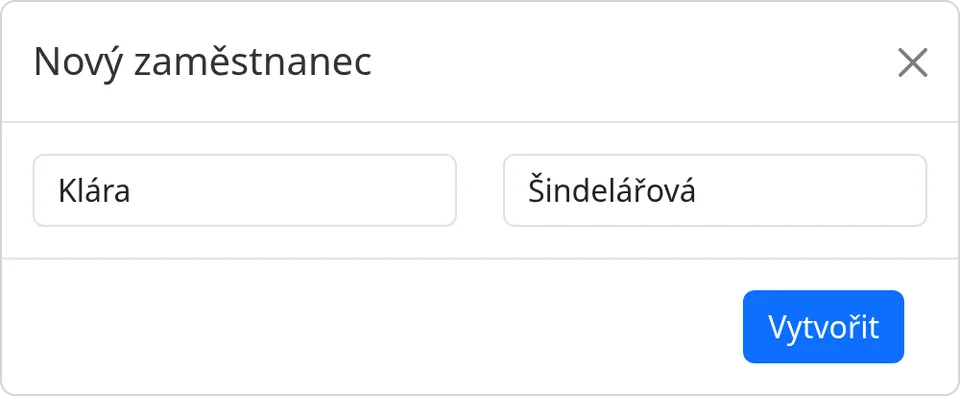
- In the “New employee” dialog, fill in the first name and surname and click “Create”.
- The new person's profile opens. A new employee has the type Active, Normal access, and the work time and minimum break taken from the system settings.
- Fill in the details as described in the following sections and save them with the floppy-disk icon.
Below the form is a list of all employees as a row of buttons. Click a name to open the profile. Active employees are blue, former ones gray, dummy ones yellow.
The Profile tab
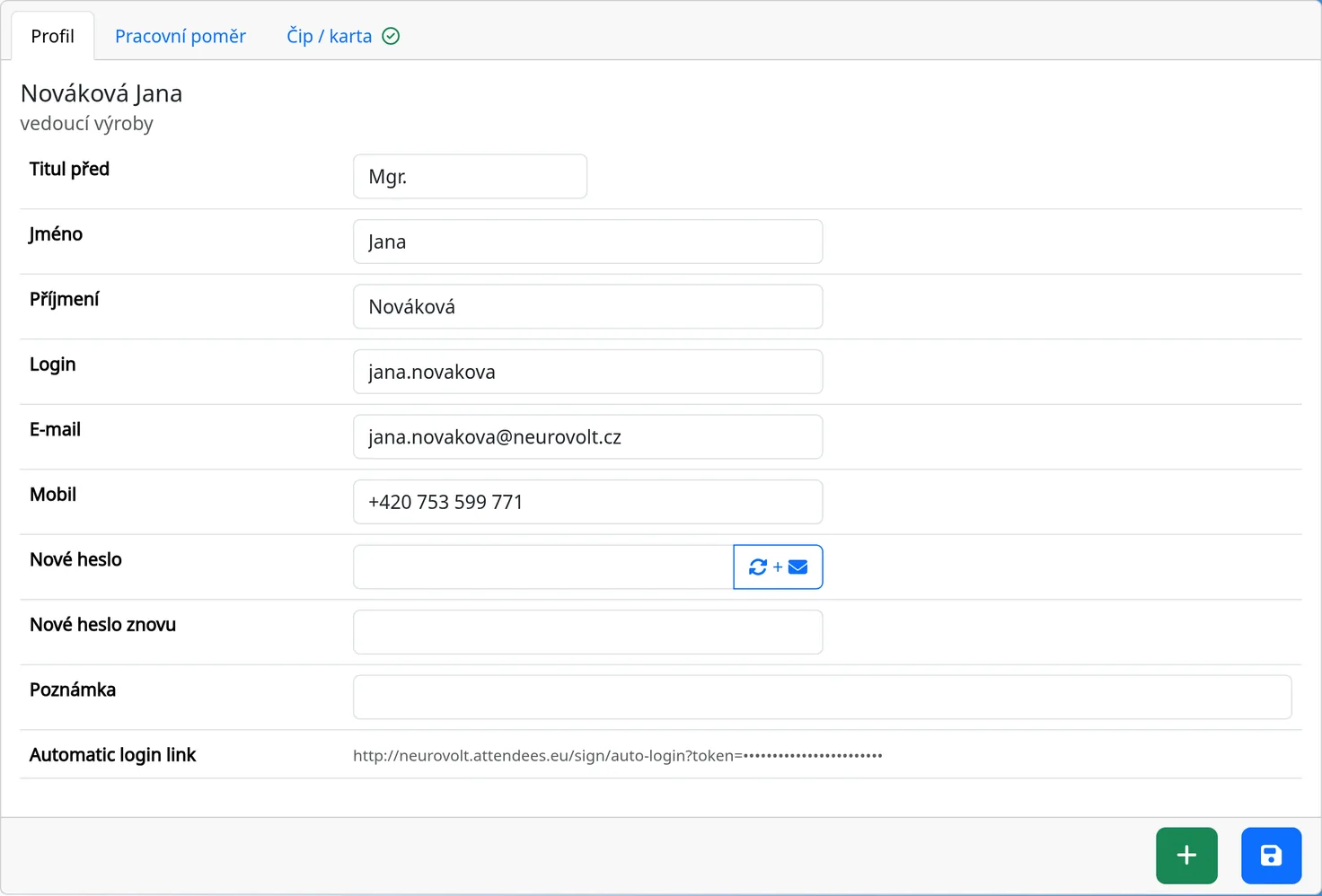
- Title bef., Name, Surname. Name and surname are required.
- Login. The login name, unique within the system. For a new employee, the button with the refresh icon creates it (from the surname and first name). An empty login means the person cannot sign in.
- E-mail and Mobile. The email is needed for sending the password and for Infomails.
- New password and New password again. The password must have at least 6 characters. It is stored encrypted and nobody can read it back.
- Note.
- Automatic login link. Only administrators see it. It is used for the kiosk (see the Kiosk chapter).
Generated password by email
Next to the “New password” field is a button with the refresh and envelope icons. When you click it, the system:
- sets a new random eight-character password for the employee (and creates a login if it is missing),
- sends the employee an email, “Access to attendance system”, with the login and password, if they have an email address filled in,
- sends an email to you as well, but without the password.
The old password stops working.
The Employment tab
Only administrators see this tab.
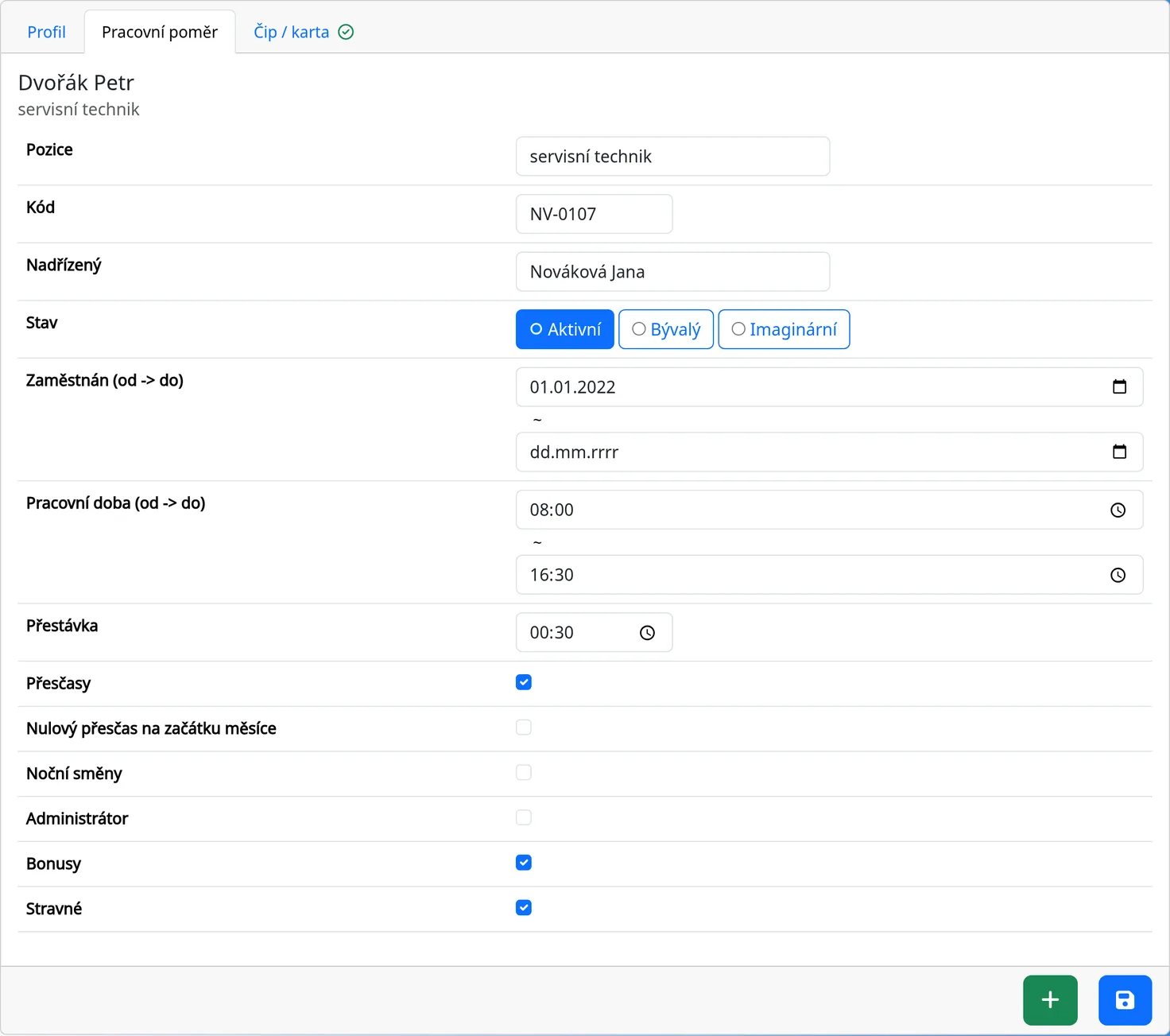
- Position and Code. The code is an external employee number, for example from your payroll software. It appears on the tile if “Show code on employee buttons” is turned on.
- Manager. Choose who supervises the employee (see the Managers chapter).
- State. Active, Former or Dummy.
- Employed, Employed until. The start and end dates of employment.
- Work time from – to. Enter it without the break: the daily workload is the difference between the two times. An eight-hour shift is therefore 08:00–16:00, not 08:00–16:30. If you enter 08:00–16:30, every day will show −0:30.
- Break. The minimum break per day, entered separately (usually 0:30 for an eight-hour shift). If the employee recorded a shorter break, the system subtracts this minimum from the worked time. A day worked 08:00–16:30 with a 0:30 break therefore shows 0:00 overtime.
- Overtimes, Zero overtime monthly, Night shifts, Bonuses, Ticket. Checkboxes for the individual employee. “Night shifts” suppresses the warning that the leave is on a different day than the arrival.
- Administrátor (Administrator). When you tick it, the employee gets Admin access, meaning the right to manage all profiles, the system, cars and Infomails.
The daily workload is always the difference of the “to” and “from” times. The Workload field, where you see it, is not used in the calculation. Express a part-time job or temporary work with a shorter work time, for example 09:00–13:00.
Employee types
- Active is a regular employee. They have a tile on the kiosk.
- Former is an employee who has left. The tile disappears, but their history and monthly sheets stay. Use it when someone leaves.
- Dummy is not a real person. It is meant for the kiosk: the kiosk at the entrance signs in as this employee. It has no tile and has no right to view reports, history or cards.
Chip and external code
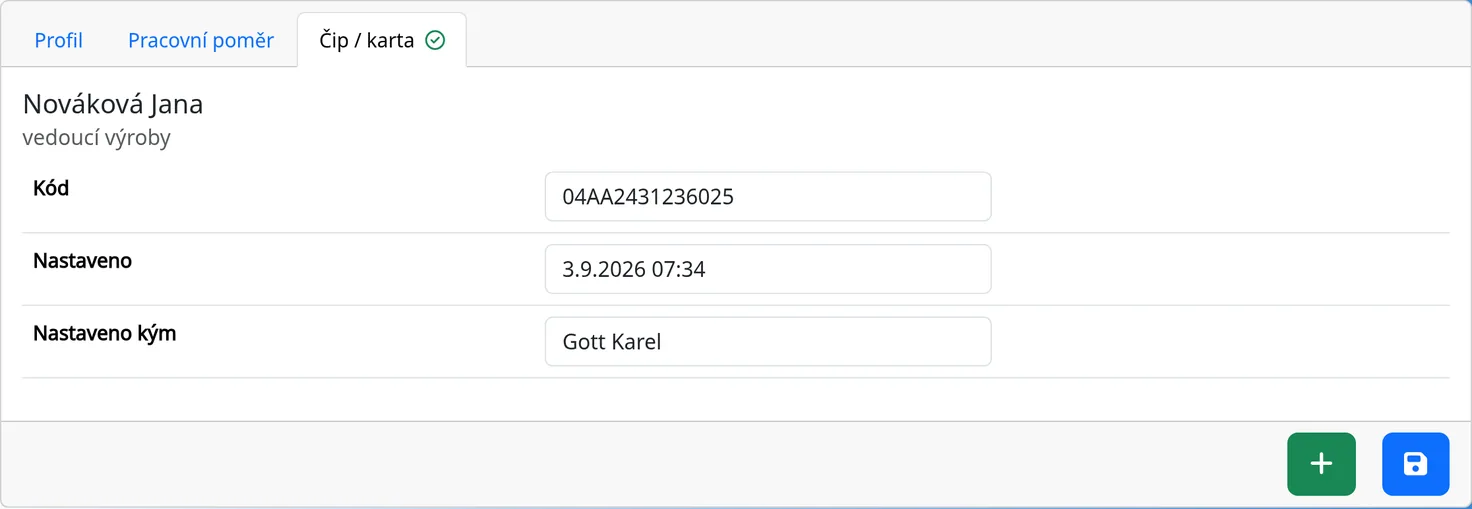
The Chip / card tab is visible only when the chip mode is turned on in System. It contains the chip code, the date it was assigned and who assigned it. See the Chips chapter for details.
Retiring a leaving employee
- Open their profile, Employment tab.
- Under “State” choose “Former” and fill in “Employed until”.
- Delete the login if the person should no longer have access to the system, and save.
We recommend not deleting employees, because deleting also removes their attendance.
Tips
- When you change a manager, the subordinates of all employees are recalculated automatically.
- For colleagues who have no email address, give them the password in person. After the first sign-in they can change it themselves.
- Some people will need only the kiosk. For such employees, do not set a login or password.
Common problems
- The employee is not on the kiosk. Check that their state is Active.
- The password was not delivered. Check the email address in the profile and the spam folder.