
First steps · 5/7
Mobile
The mobile version lets an employee record an arrival, a leave and other statuses from their own phone. It is meant for people who work in the field or from home. In it, every employee works only for themselves.
Address and sign-in
- On the phone, open the system address, for example
your-company.attendees.eu. The system detects the phone and shows the mobile interface, which works only with your own attendance (not the terminal with every employee). - Enter your login name and password (from your administrator, see the Employees chapter).
- Tick “Pamatovat si přihlášení” (Remember my sign-in) if you do not want to enter the password every time you open it. The sign-in then lasts 14 days, otherwise 20 minutes of inactivity.
- We recommend adding the page to your phone's home screen.
If you sign in from a phone on the regular address, the system redirects you to the mobile version itself. On a computer, open the mobile screen from the menu System → Tablet view.
An employee of the type Dummy (the kiosk) has no mobile version.
What you see
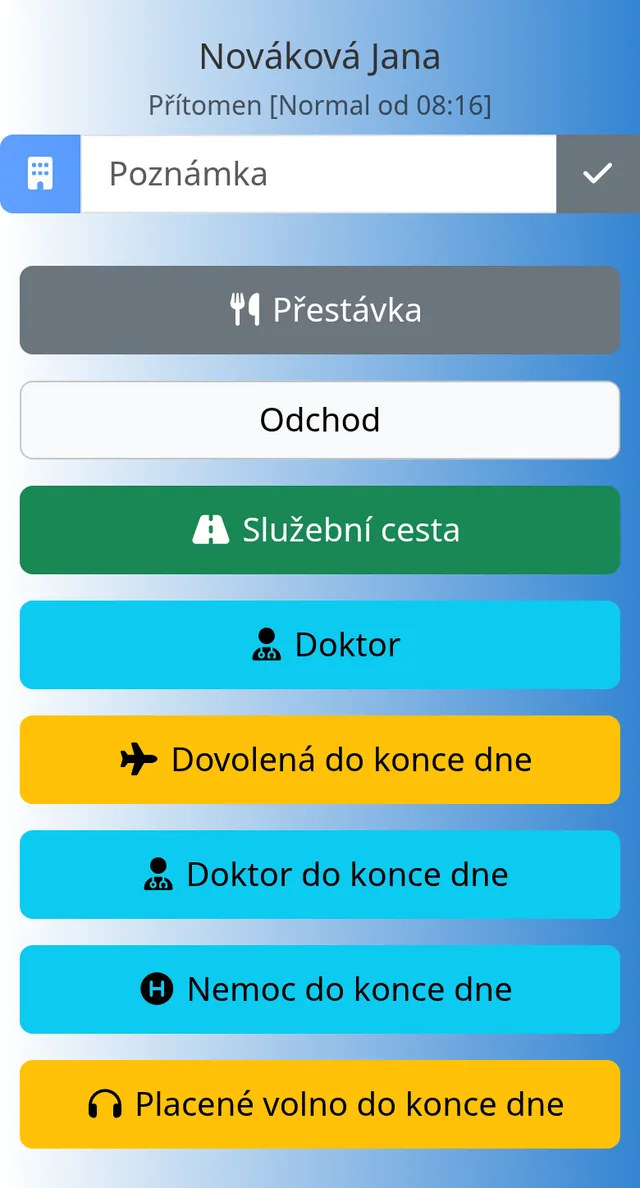
At the top are your name and status. The status can be “Left”, or “Present” with the type and arrival time (for example “Present [Normal from 7:58]”). The top bar has a monitor icon (switches to the kiosk screen) and a person icon (Profile, Logout).
Below that are large buttons. Only actions that make sense for your current status are offered.
| Your status | Buttons offered |
|---|---|
| Out of work | Normal, Business trip, Home office, Doctor, Business trip all day, Illness all day, Vacation all day |
| At work (Normal) | Break, Leave, Business trip, Doctor, Vacation / Doctor / Illness / Payed day off all day |
| On a break | Return from break |
| On a business trip | Normal, Break, Home office, Leave, Vacation / Doctor / Illness / Payed day off all day |
| Home office | Break, Leave, Normal, Doctor, and the same “all day” buttons |
| At the doctor | Illness all day, Leave, Normal |
| Illness | Leave, Normal |
| Vacation, payed day off, day off | Normal, Leave |
An “all day” button records an entry that ends at the moment your shift would end (according to your daily workload). The Kiosk Day to Day chapter describes this in detail.
Note on the arrival
While an arrival is open, you see a note field and a save button under your name. The note is saved to your current card. The change is recorded in History.
Unclosed attendance
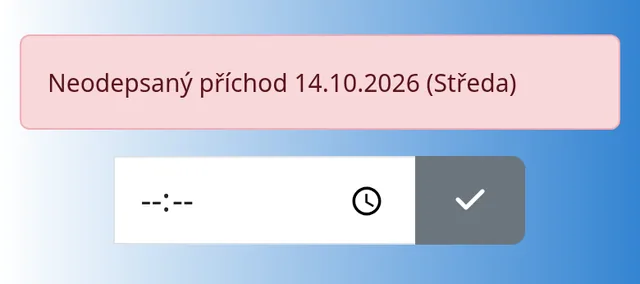
If you forgot to record your leave yesterday, a red “Unclosed attendance” message with the date appears instead of the buttons. Below it is a time field. Enter the leave time from the day of the arrival and tap the check mark. The leave is filled in and you can carry on.
Mileage log on a business trip
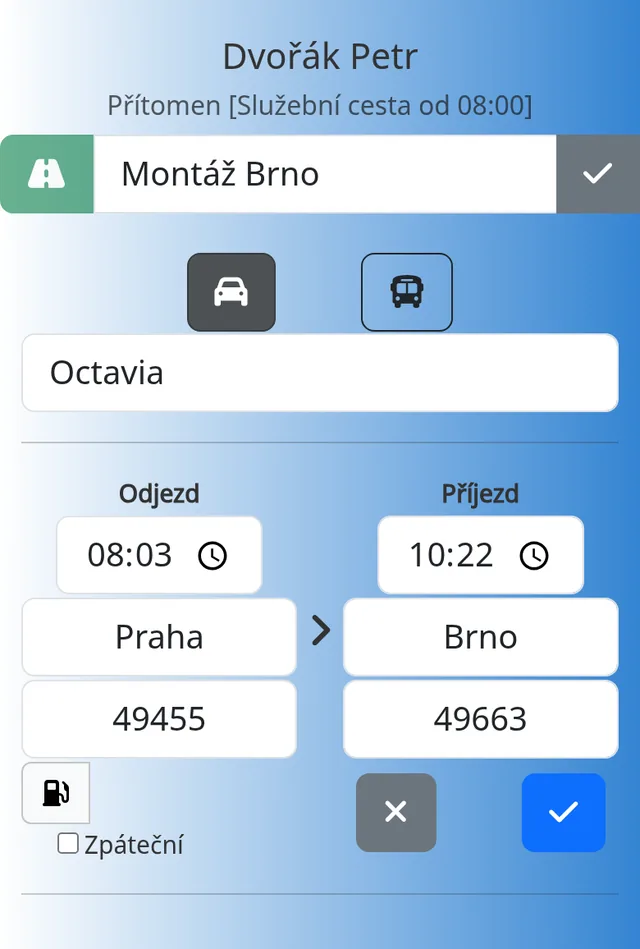
If you have a business trip recorded, a car icon appears above the buttons. You see the icon only if your administrator has assigned you at least one car (Admin → Cars list). Tapping it opens a form:
- Choose the car.
- Fill in the departure time, the departure place, the destination and the odometer reading at departure. You can add the arrival time and the reading at the destination later.
- Tick “Round trip” if the trip is there and back.
- Use the button with the fuel pump icon to add the amount and price of fuel.
- Save with the check mark.
The odometer reading is pre-filled from the last ride of that car. You can reopen and edit a saved ride within the same trip. See the Mileage Log chapter for more.
Tips
- The mobile version records the server time, not the phone's time.
- Arrivals recorded on mobile are marked with a phone icon in History.
Common problems
- I cannot see the Leave button. You have an open break. First choose “Return from break”.
- I cannot see the car icon. You are not on a business trip, or you have no car assigned.