
Everyday usage · 5/10
Reports and Monthly Sheets
In the “Reporty” (Reports) menu you find the attendance overviews: today's and yesterday's arrivals, all arrivals with a filter, and each employee's monthly sheet. This chapter describes what each report shows, which columns you can turn on, and how to print a sheet.
Everyone who is not a Dummy can see the Reporty menu. An employee sees only themselves, a manager themselves and their subordinates, an administrator everyone.
Arrival lists
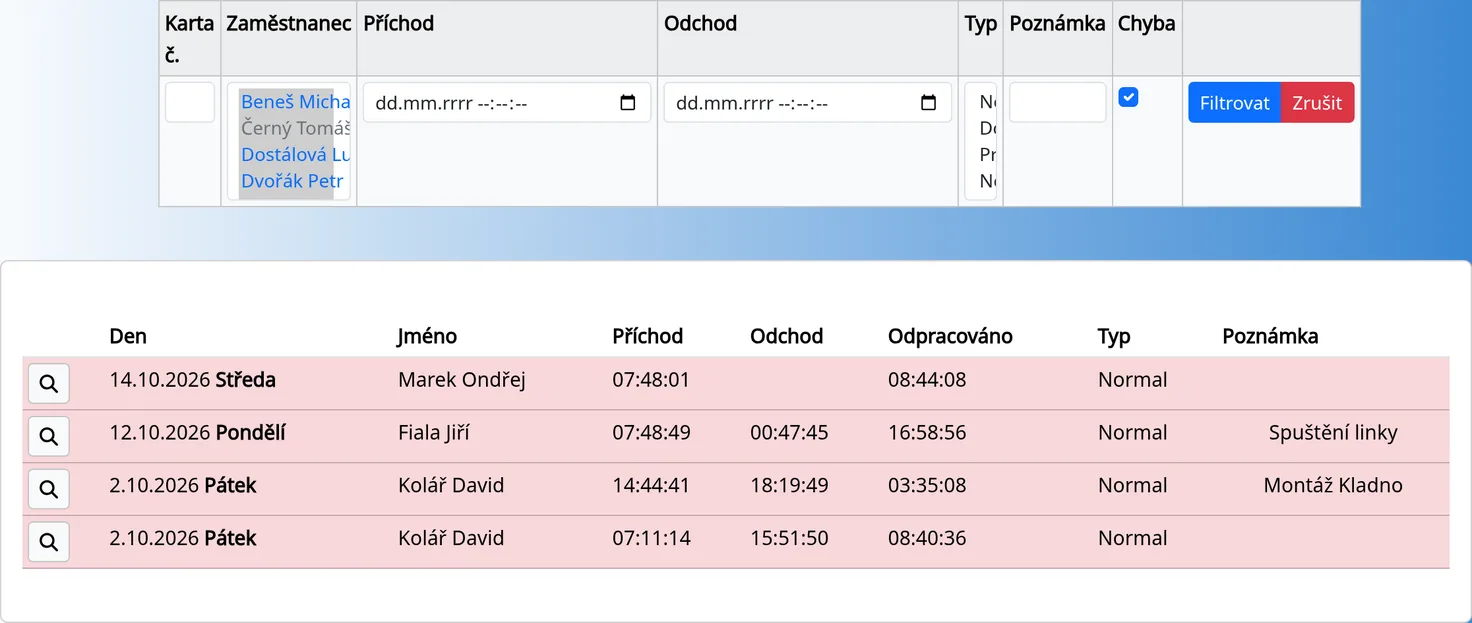
- “Všechny příchody” (All arrivals). A table of cards, 50 per page. At the top is a filter: card number, employee (you can choose several), arrival from, leave to, type (several), note, and an “Error” checkbox for cards with a warning. Apply the filter with the “Filter” button and clear it with “Cancel”.
- Today arrivals and Yesterday arrivals. The same for one day.
- “Mé příchody” (My arrivals). Only your own cards.
Open a card with the magnifier icon. Rows with a warning are red.
The monthly sheet
- Reporty → Month list.
- Choose the Year, Month and Employee and click “Zobrazit výpis” (Show list).
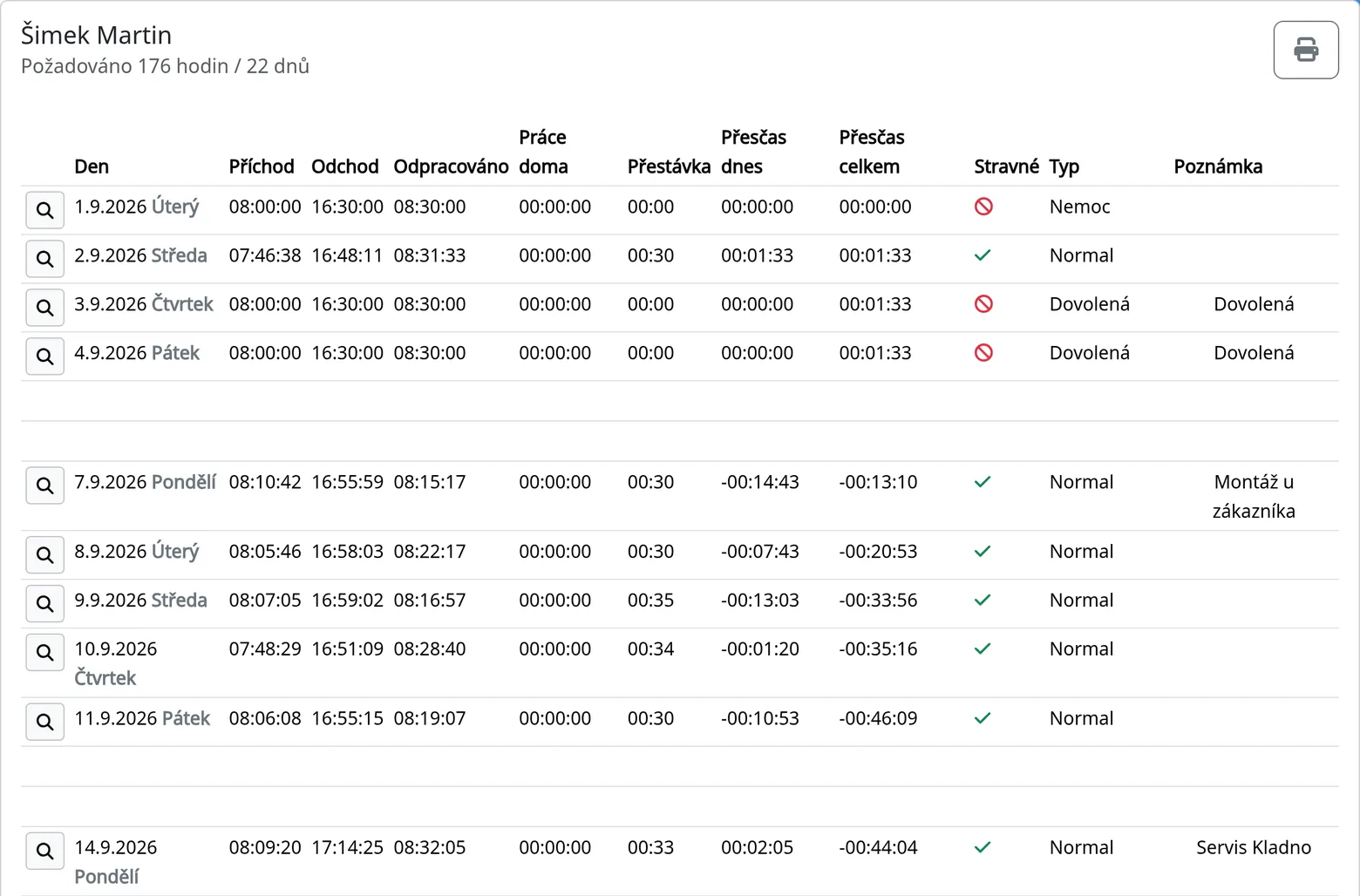
At the top you see the name, the required hours and the number of days. If overtime is on, you also see “Overtime from last month”. The table contains the day, arrival, leave, hours worked, type and note, plus the columns turned on in the settings (see below). Days with several cards can be expanded with the “+” button.
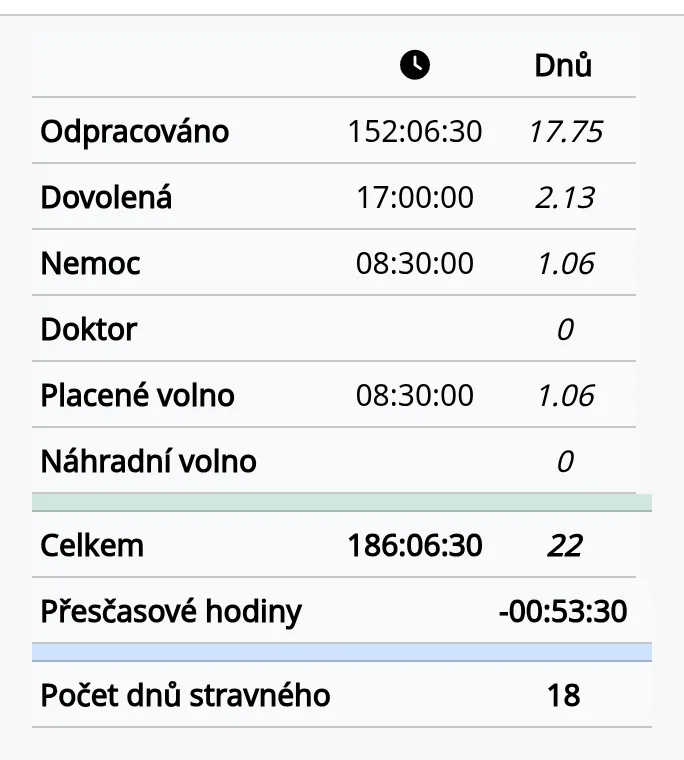
At the bottom is the summary: hours worked, vacation, illness, doctor, payed day off, day off, total and overtime. Each row shows the number of days.
Columns you can turn on
In Admin → System → the Month list tab, tick what you want to see:
| Option | What it adds |
|---|---|
| Show column with breaks in the month list | the Break column |
| Show in the month list column Home office | the Home office column |
| Show advanced sums under the month list | advanced sums under the sheet (see the note below) |
| Show Bonus field in month list, Show Bonus (%) field in month list | the Bonus / Bonus (%) fields in the PDF footer |
| Show area for employee's signature | a line for the employee's signature in the PDF |
| Show area for boss signature | a line for the manager's signature in the PDF |
| Show area for sum of ticket days | the total of meal-allowance days in the PDF |
| Zero lists enabled | the Wage list item in the menu |
The Overtime columns appear if Overtimes counted is on in System and for the employee. Ticket (meal allowance; a green check mark or a crossed-out circle) appears if it is on in System and for the employee. The “Overtime today” column (daily overtime next to the running total) is turned on by the system operator and is not on the System screen.
The employee code (external number) is shown under the name on the tile if “Show code on employee buttons” is on in the Kiosk board tab.
Missing-day warning
If the missing-day warning is on, every working day without a card is red in the sheet, with a “Missing day” badge and the date. Weekends have no badge. You cannot change this option on the System screen. The operator changes it.
Wage list
It is available if “Zero lists enabled” is on. It subtracts the overtime minutes from the days with overtime so that the month adds up to the required hours. If the employee has no overtime for the month, the system shows a message that the list cannot be created and displays the regular sheet.
PDF, XLS and other formats
- PDF. The printer icon at the top right opens the PDF in a new tab and offers printing. The PDF contains the company logo, the footer “Generated by …” and, if turned on, the signature fields.
- XLS. The button exists but is not active.
- Other formats. Export to other formats, such as XML for payroll software, is in preparation.
Tips
- Displaying a monthly sheet is recorded in History (“Generated month list”).
- Go through the red days before printing. The PDF prints them anyway.
- Days with arrivals that someone other than the employee edited are marked and have an explanatory text.
Common problems
- The sheet does not show an employee. Choose an employee and click “Zobrazit výpis”.
- An employee is missing from the list. You do not have the right to see them, or they are a Dummy.