
First steps · 4/7
Kiosk at the Entrance
The kiosk is a touchscreen computer at the entrance to your company. Employees use it to record an arrival, a leave or another type of absence with a single tap. This chapter describes how to install the kiosk and what you see on the screen. Everyday use is covered in the Kiosk Day to Day chapter.
What you need
- a touchscreen computer (or a tablet with a browser) connected to the internet,
- a modern browser that can run full screen (kiosk mode),
- optionally a chip reader, see the Chips chapter.
Setting up the kiosk
- In Admin → Employees, create an employee for the kiosk, for example “Entrance Kiosk”. On the Employment tab, set the state to Dummy and save.
- Open this employee's profile. On the Profile tab, at the bottom, is the Automatic login link row. Copy the whole address. It contains a secret code, so do not show it to anyone.
- On the kiosk computer, open this address in a browser. The system signs in without asking for a password and opens the main screen.
- Switch the browser to kiosk mode (for example, start Chrome with the
--kioskparameter and the link as the address). Set the browser to start when the computer starts. - Turn off screen sleep in the computer's settings.
The Dummy employee sees only the tiles. It has no History or Reports items, and no “Zadat příchod/y” (Enter arrivals) item. This keeps the kiosk simple. The page refreshes itself every 30 seconds, so changes from phones and chips appear without a tap.
What the tiles show
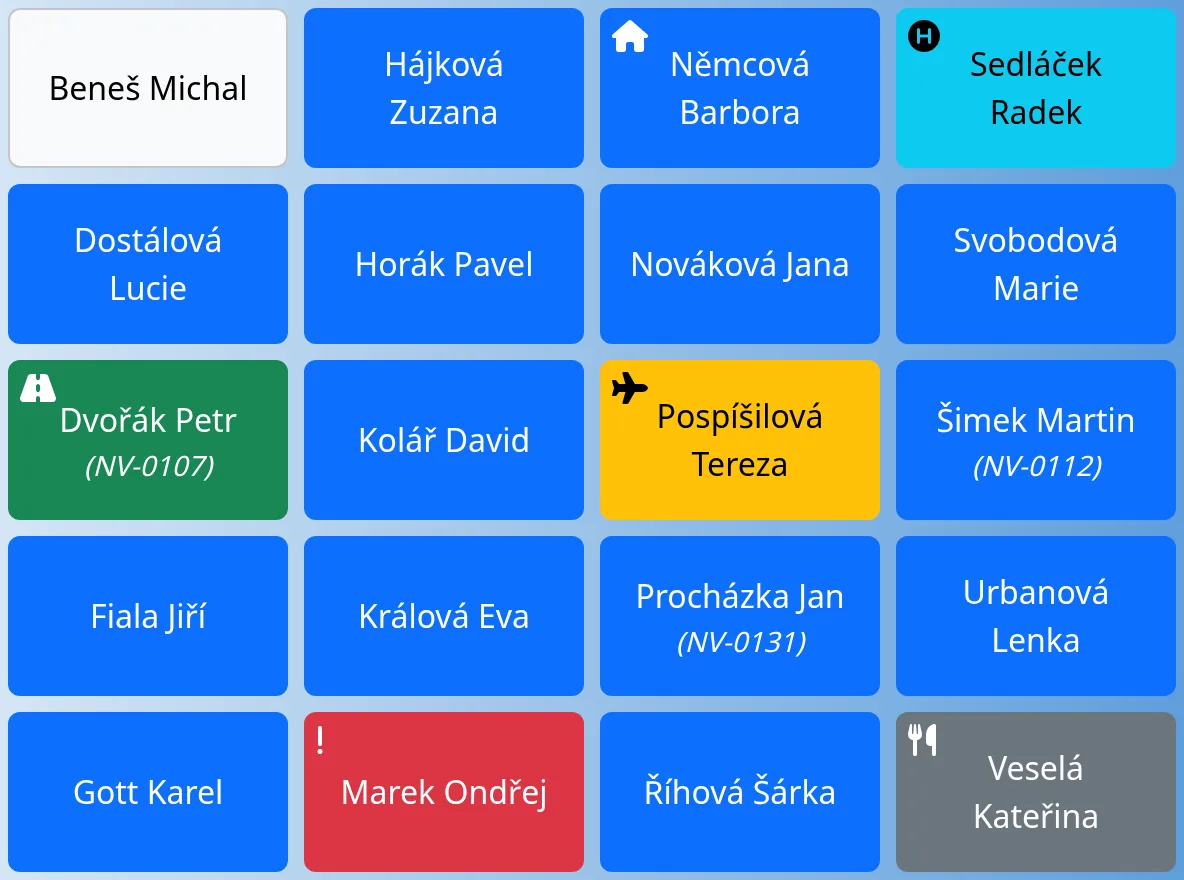
Every active employee has one tile with their name (and optionally a code in parentheses). The color shows the status:
| Tile color | Meaning |
|---|---|
| Blue | at work (Normal) |
| Blue with a little house | working from home |
| Gray with cutlery | on a break |
| Green with a road | on a business trip |
| Light blue | at the doctor, ill |
| Yellow | vacation, payed day off |
| Gray with a circle | day off, or “Unattendant” when hiding the absence type is turned on |
| White | the employee is out of work |
| Red with an exclamation mark in the corner | unclosed attendance, meaning an arrival from an earlier day with no leave |
When you hover the pointer over a tile, the name of the status appears. To change the number of columns, edit “Button columns” in System.
The exclamation mark and warnings
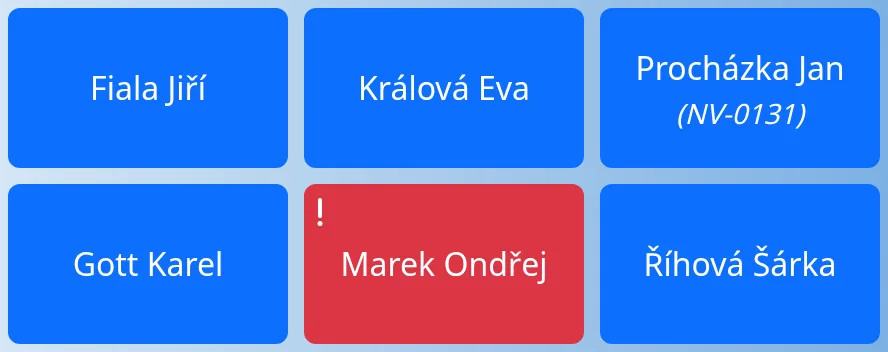
A red tile with an exclamation mark points to an arrival that has no leave. Tap the tile to open the card for that arrival, where you can fill in the leave time (Attendance Cards chapter).
Tapping a tile
A tap does whatever is most common at that moment:
- White tile: records an arrival.
- Blue tile (at work): opens the Leave dialog.
- On a break: ends the break.
- On a business trip: records the return to work.
- Doctor: opens the “Leave from doctor” dialog.
- Vacation, illness, payed day off, home office: records a normal arrival.
Details are in the Kiosk Day to Day chapter.
On-screen keyboard
The kiosk has no keyboard of its own. If the computer has no physical keyboard, turn on the touch keyboard of the operating system.
Chip reader
When the chip mode is on, an employee holds their chip to the reader and the system does the same as a tap on their tile. Chip setup is in the Chips chapter.
Common problems
- The screen shows the sign-in page. The automatic login link is no longer valid. Copy the current link from the profile.
- The tile does not respond to taps. Check the chip mode. If it is set to “Access only via chip”, touch does not work for employees.
- An employee is missing. Check that their state is Active.