
Everyday usage · 6/10
Mileage Log
The mileage log records rides in company cars: from where to where, when, how many kilometers and who drove. This chapter describes how to add cars and their drivers, how to record rides (from a phone during a business trip), and how to print the monthly mileage log.
Turning on the module
The Cars module has no switch on the System screen. The items “Cars list” (Admin) and “Kniha jízd” (Mileage log; under Reporty) are always in the menu. If you do not use the mileage log, do not create any cars.
Adding a car
Only administrators manage cars.
- Admin → Cars list.
- Click the green circle with a plus to the right of the car tabs.
- Enter the name of the car and click “Create”. You become the responsible employee and the only driver.
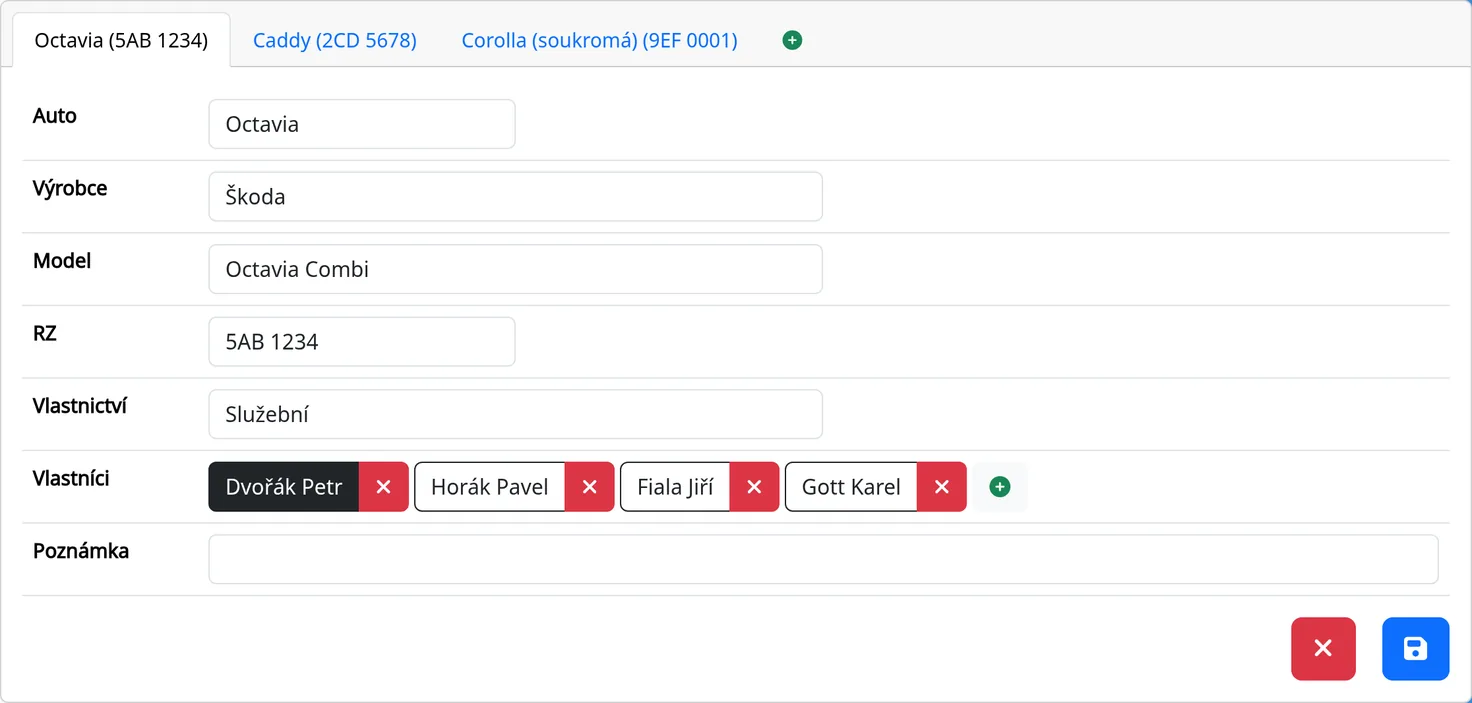
- On the new car's tab, fill in the fields:
- Car (name), Manufacturer, Model, Number plate,
- Ownership: Company, Private, or Company with private rides allowed,
- Note.
- Save with the floppy-disk icon.
Each car has its own tab. To delete a car, use the red cross at the bottom and confirm “Are you sure you want to delete this car?”.
Drivers and the responsible employee
In the Used by field (who may use the car) there are buttons with names:
- click a name to set the responsible employee (the dark button),
- remove a driver with the cross next to the name,
- add a driver with the green circle with a plus (the “Choose employee” dialog, the “Add” button).
The car's mileage log is available to the administrator, the responsible employee and all drivers the car is shared with.
Recording a ride from the phone
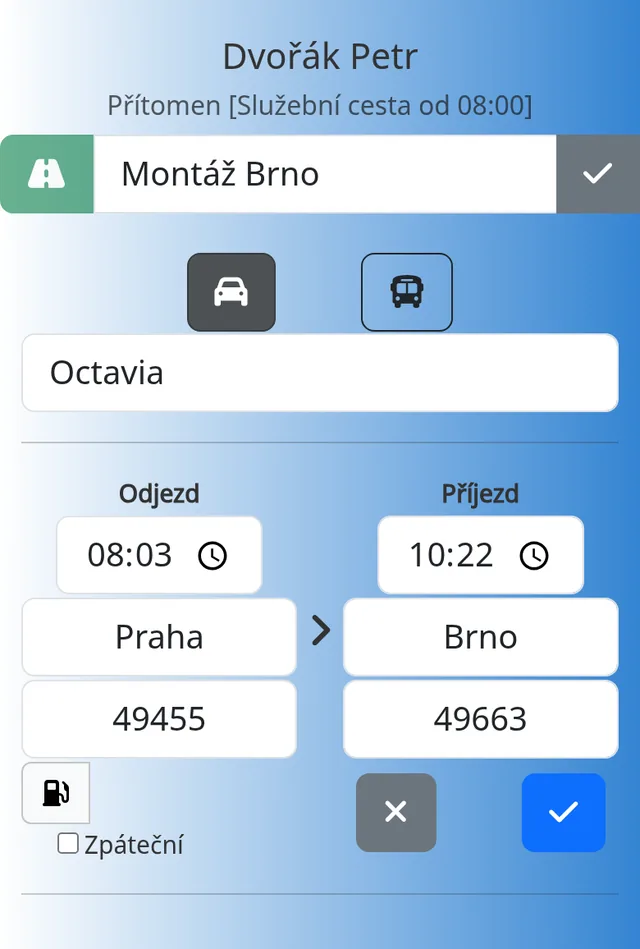
An employee with an assigned car records a ride during a business trip in the mobile version:
- On the phone, choose “Business trip”.
- Tap the car icon.
- Choose the car. The odometer reading is pre-filled from the last ride of that car.
- Fill in the departure time, the departure place, the destination and the odometer reading at departure. You add the arrival time and the reading at the destination after you arrive.
- Tick “Round trip” if you are going there and back.
- Add refueling if needed (amount and price).
- Save with the check mark.
You can reopen and correct the ride on the same trip.
The monthly mileage log
- Reporty → Kniha jízd (Mileage log).
- Choose the year, month and car and click “Zobrazit výpis” (Show list).
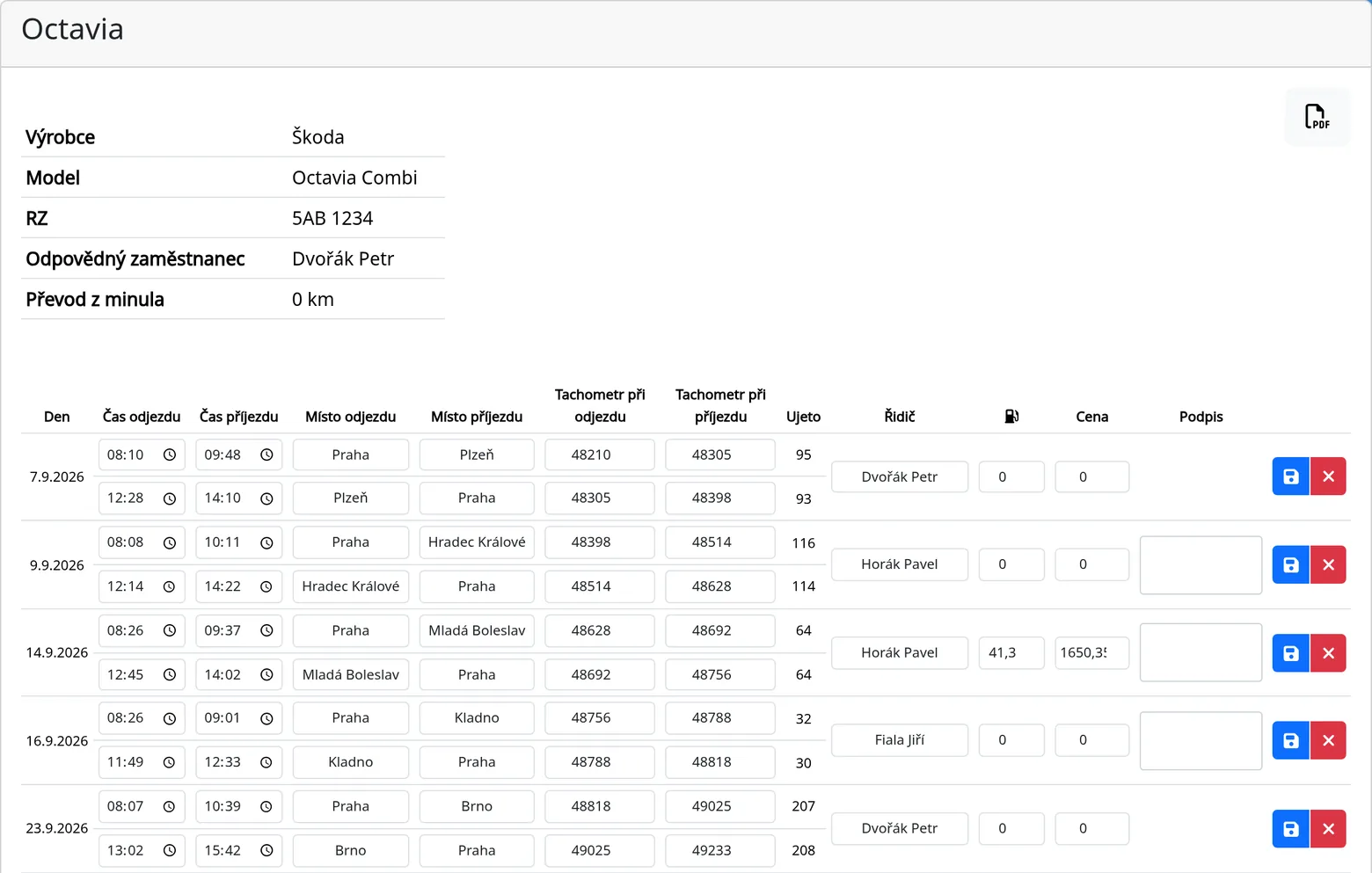
- You see the car's details, the last odometer reading and a table of rides: day, times, places, odometer start and end, kilometers driven, driver, fuel, price and signature.
- At the bottom are the totals: business and private kilometers, fuel pumped and average consumption.
- The PDF icon at the top right opens the mileage log PDF. The PDF footer has a line for the employee's and the manager's signatures.
An administrator and the driver's manager can correct or delete a ride directly in the row. Rides with a round trip appear as two rows. The mileage log is kept per car.
Travel report
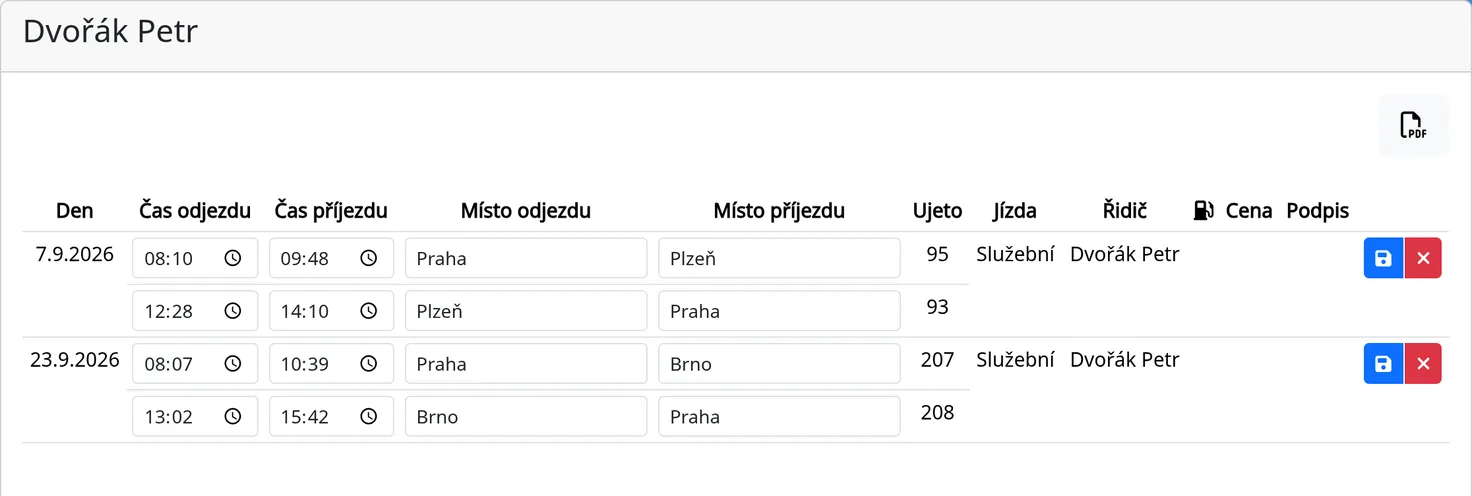
Reporty → “Cestovní výkaz” (Travel report) shows one employee's rides for a month (day, times, places, kilometers, trip type, driver, fuel, price, signature). It is useful for a travel order.
Tips
- In the car list in Reports you see only the cars you have access to (an administrator sees all of them).
- Enter refueling in the mileage log right away. It is hard to track down later.
- Add a car's drivers before the first ride. Otherwise they will not see the car icon on the phone.
Common problems
- I cannot see the car icon on the phone. You are not on a business trip, or your administrator has not assigned you a car.
- The mileage log shows “No ride found”. There are no records for the selected month and car.