
Everyday usage · 3/10
Chips
The chip module lets employees record attendance by holding a chip or card to a reader at the kiosk. This chapter describes the three modes, how to assign a chip to an employee, and what to do when a chip is lost.
Chip modes
You set the mode in Admin → System → the Chip / card tab, in the Mode field.
- Off. Chips are not used. The Chip / card tab is not shown in profiles.
- Access only via chip. An employee records attendance only with a chip. The tiles on the kiosk are inactive for regular users. An administrator can always tap.
- Access via chip and touch. Both the chip and a tap on the tile work.
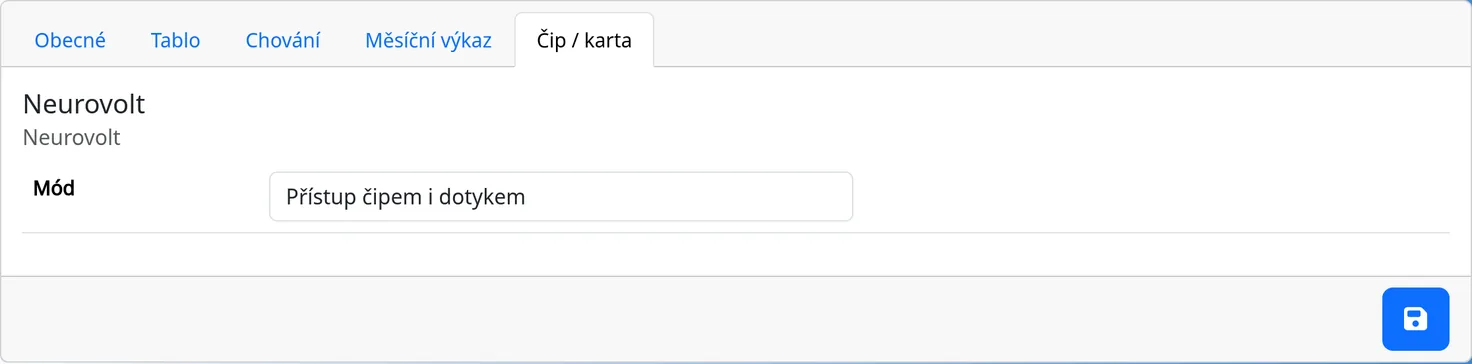
What the reader does
The reader must be connected to the kiosk computer and must behave like a keyboard (it “types” the chip code when you hold the chip to it). The system reads the code only on the main screen of the kiosk. The code must have at least 8 characters. The database does not store the chip code in readable form, but its fingerprint (SHA-256), which is computed by the browser.
Which reader and which chips to buy
The system needs no special reader. Any reader that behaves like a keyboard once connected to the computer and “types” the chip code when a chip is held to it works; that is the vast majority of USB readers on the market. Nothing is installed: plug the reader into the USB port of the computer or tablet by the entrance, open the terminal and hold a chip to it.
- The most common and cheapest choice: a USB 125 kHz RFID reader for EM4100 chips and cards (for example the USB RFID reader 125 kHz EM4100 from LaskaKit; many other suppliers sell the same type). The reader costs a few hundred crowns, chips and cards a few crowns each.
- Higher security: a MIFARE (13.56 MHz) reader or another standard; 125 kHz chips are easy to clone, MIFARE much harder. The system works with the code the reader emits, so the chip type does not matter.
- Buy chips to match the reader: a 125 kHz reader reads only 125 kHz chips, a MIFARE reader only MIFARE. Combined readers exist but are not needed.
- Key fobs or cards? Both work the same; a key fob is harder to lose, a card can be printed on.
The reader must be set to send Enter after the code (the default of most readers). The code must have at least 8 characters, which EM4100 readers satisfy.
After an employee's chip is presented, the system does the same as a tap on their tile:
- white tile: arrival,
- at work: the Leave window opens. If you present the same chip once more, the leave is recorded immediately,
- on a break: the break ends,
- other statuses as described in the Kiosk Day to Day chapter.
Assigning a chip to an employee
The easiest way is to assign a chip right at the terminal; the same can be done from the administrator's computer in the employee's profile, but at the terminal it is quicker and nothing is typed.
At the terminal (by holding the chip to the reader)
- Hold a new, not yet assigned chip to the reader. Because the system does not know it, it opens the Set chip window by itself; you never type the chip code.
- Choose the employee the chip belongs to in the list. Employees who already have a chip are highlighted.
- Confirm by holding an administrator's chip to the reader. The window prompts you with “To approve this chip add administrator chip”. (A signed-in administrator can click Approve as Your Name instead.)
- “Success” appears and the page refreshes. From now on the employee clocks in by holding their chip to the reader.
The terminal must have the chip mode switched on (see Chip modes).
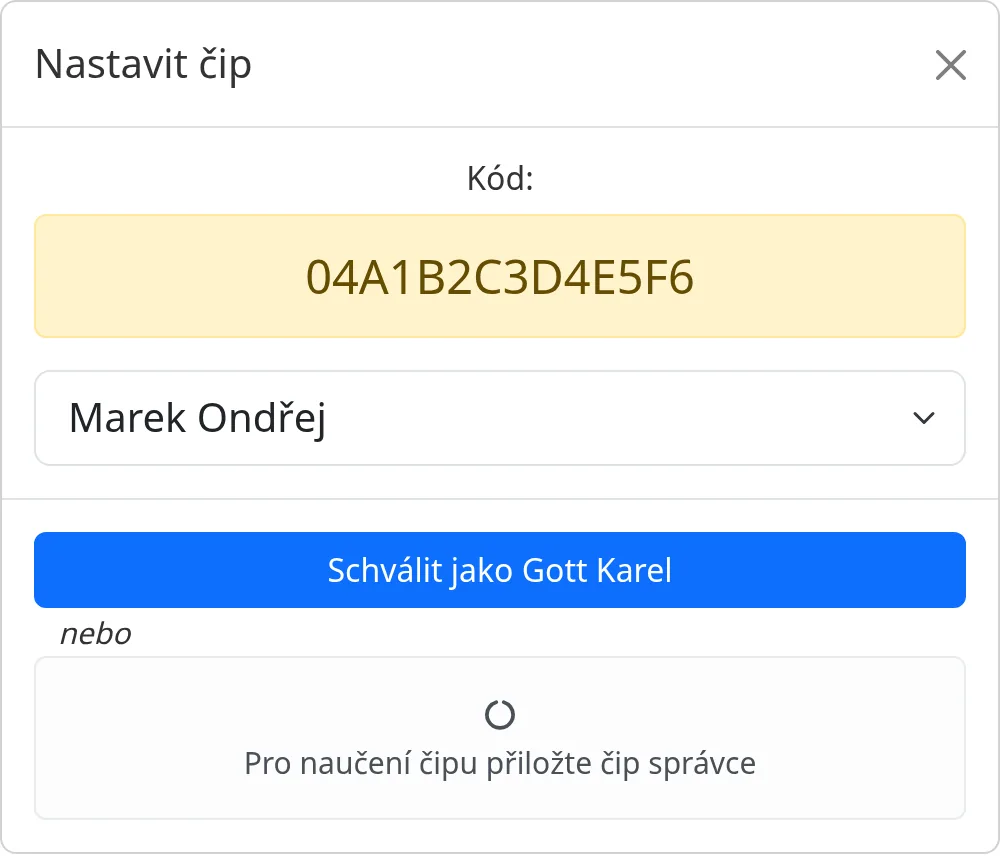
If you confirm with a chip that does not belong to an administrator, you see “Chip you used to confirm is not an admin chip”. If the chip is unknown, you see “Chip you used to confirm does not exist”.
In the employee's profile (Admin → Employees → the Chip / card tab) you then see Set (the date of assignment) and Set by (who assigned the chip). A green mark next to the tab name means the employee has a chip.
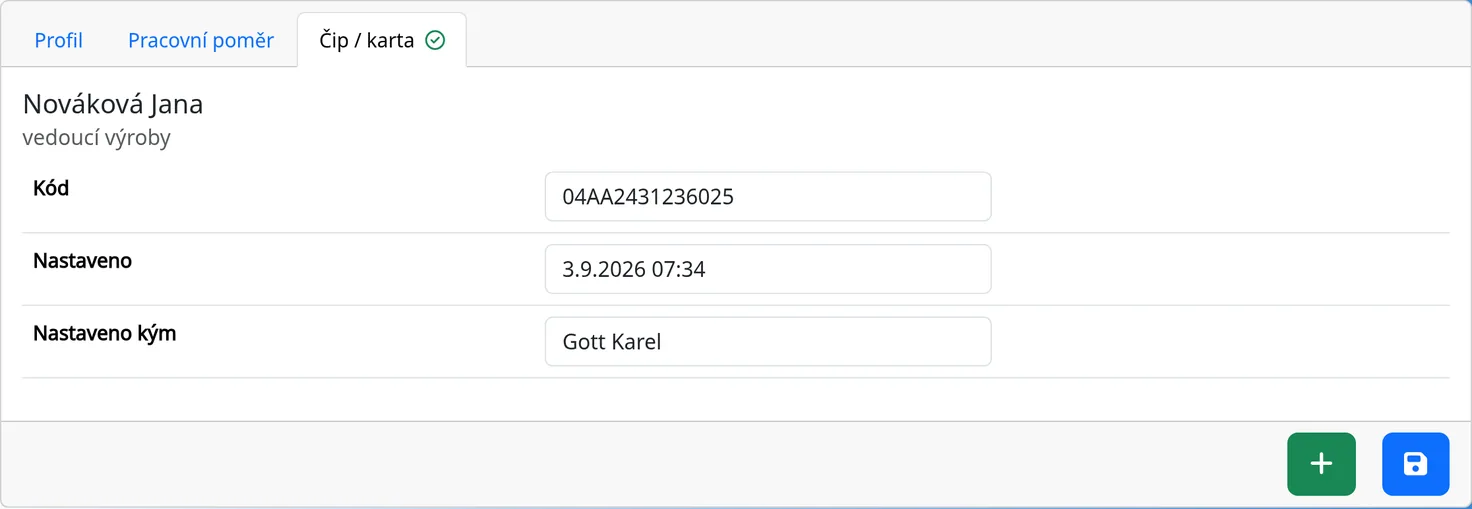
The Code field in the profile
An administrator also sees a Code field on the Chip / card tab. It contains the stored fingerprint of the chip, not the code printed on the card. It is mainly used to unlink a chip (see Lost chip). Do not fill in a new chip by hand. Scan it with the reader.
Lost chip
- An administrator opens the employee's profile and the Chip / card tab, clears the value in the Code field and saves. The old chip stops working.
- Until a new chip is issued, the employee uses touch. In the “Access only via chip” mode, temporarily switch the mode to “Access via chip and touch”.
- Assign the new chip using the procedure above.
Tips
- For employees who forgot their chip, allow them to record attendance in the “Access via chip and touch” mode, or add it with a card.
- Keep the administrator's chip separate from the others.
Common problems
- Nothing happens when I present the chip. Check that the chip mode is on in the system and that the main screen is open (not a profile or a sheet).
- The Set chip window opens every time I present the chip. The chip is not assigned. Assign it.